Skip to content

Blog

Welcome to my blog where I share my thoughts on cybersecurity, tech, and more.

# Burp Suite: Intruder - TryHackMe Walkthrough

Welcome to the Burp Suite Intruder room!

Task 1 - introduction

In this room, we will explore Burp Suite's Intruder module, which offers automated request manipulation and enables tasks such as fuzzing and brute-forcing. If you are not familiar with Burp Suite's Proxy and Repeater functionality, it is recommended to complete at least the Burp Basics room before proceeding.

Burp Suite's Intruder module is a powerful tool that allows for automated and customisable attacks. It provides the ability to modify specific parts of a request and perform repetitive tests with variations of input data. Intruder is particularly useful for tasks like fuzzing and brute-forcing, where different values need to be tested against a target.

Deploy the target VM attached to this task by pressing the green Start Machine button. Also, start the AttackBox by pressing the blue Start AttackBox button at the top of this room if you are not using your own machine. Then start Burp and follow along with the next tasks. Answer the questions below

Let's get started!

Task 2 - What is Intruder?

Intruder is Burp Suite's built-in fuzzing tool that allows for automated request modification and repetitive testing with variations in input values. By using a captured request (often from the Proxy module), Intruder can send multiple requests with slightly altered values based on user-defined configurations. It serves various purposes, such as brute-forcing login forms by substituting username and password fields with values from a wordlist or performing fuzzing attacks using wordlists to test subdirectories, endpoints, or virtual hosts. Intruder's functionality is comparable to command-line tools like Wfuzz or ffuf.

However, it's important to note that while Intruder can be used with Burp Community Edition, it is rate-limited, significantly reducing its speed compared to Burp Professional. This limitation often leads security practitioners to rely on other tools for fuzzing and brute-forcing. Nonetheless, Intruder remains a valuable tool and is worth learning how to use it effectively. Let's explore the Intruder interface: Burp Suite Intruder interface  The initial view of Intruder presents a simple interface where we can select our target. This field will already be populated if a request has been sent from the Proxy (using Ctrl + I or right-clicking and selecting "Send to Intruder").
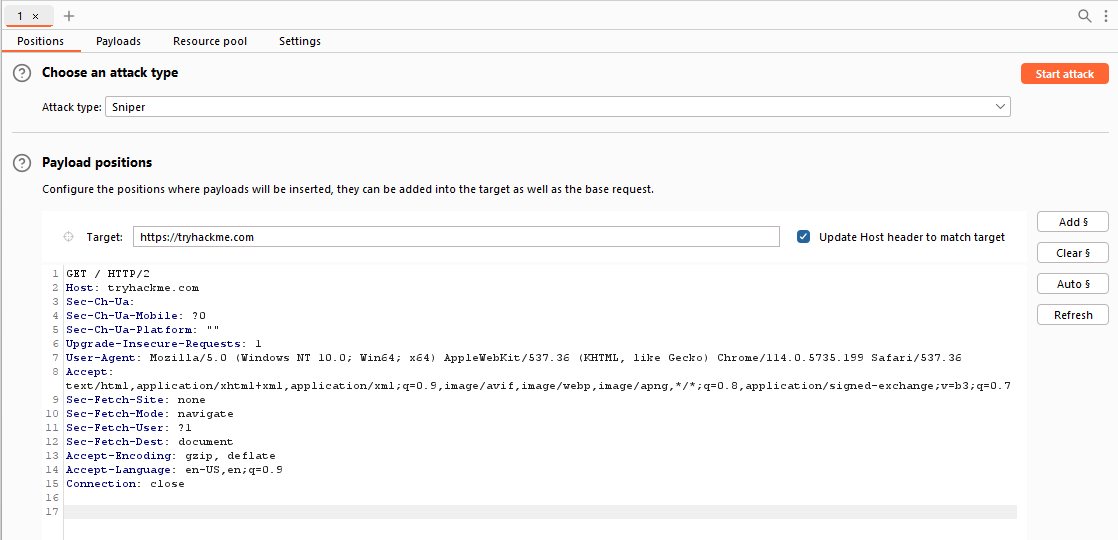
There are four sub-tabs within Intruder: - Positions: This tab allows us to select an attack type (which we will cover in a future task) and configure where we want to insert our payloads in the request template. - Payloads: Here we can select values to insert into the positions defined in the Positions tab. We have various payload options, such as loading items from a wordlist. The way these payloads are inserted into the template depends on the attack type chosen in the Positions tab. The Payloads tab also enables us to modify Intruder's behavior regarding payloads, such as defining pre-processing rules for each payload (e.g., adding a prefix or suffix, performing match and replace, or skipping payloads based on a defined regex). - Resource Pool: This tab is not particularly useful in the Burp Community Edition. It allows for resource allocation among various automated tasks in Burp Professional. Without access to these automated tasks, this tab is of limited importance. - Settings: This tab allows us to configure attack behavior. It primarily deals with how Burp handles results and the attack itself. For instance, we can flag requests containing specific text or define Burp's response to redirect (3xx) responses.

Note

The term "fuzzing" refers to the process of testing functionality or existence by applying a set of data to a parameter. For example, fuzzing for endpoints in a web application involves taking each word in a wordlist and appending it to a request URL (e.g., http://xx.xx.xx.xx/WORD_GOES_HERE) to observe the server's response.

Answer the questions below

In which Intruder tab can we define the "Attack type" for our planned attack?

Positions

Task 3 - Positions

When using Burp Suite Intruder to perform an attack, the first step is to examine the positions within the request where we want to insert our payloads. These positions inform Intruder about the locations where our payloads will be introduced (as we will explore in upcoming tasks). Let's navigate to the Positions tab:
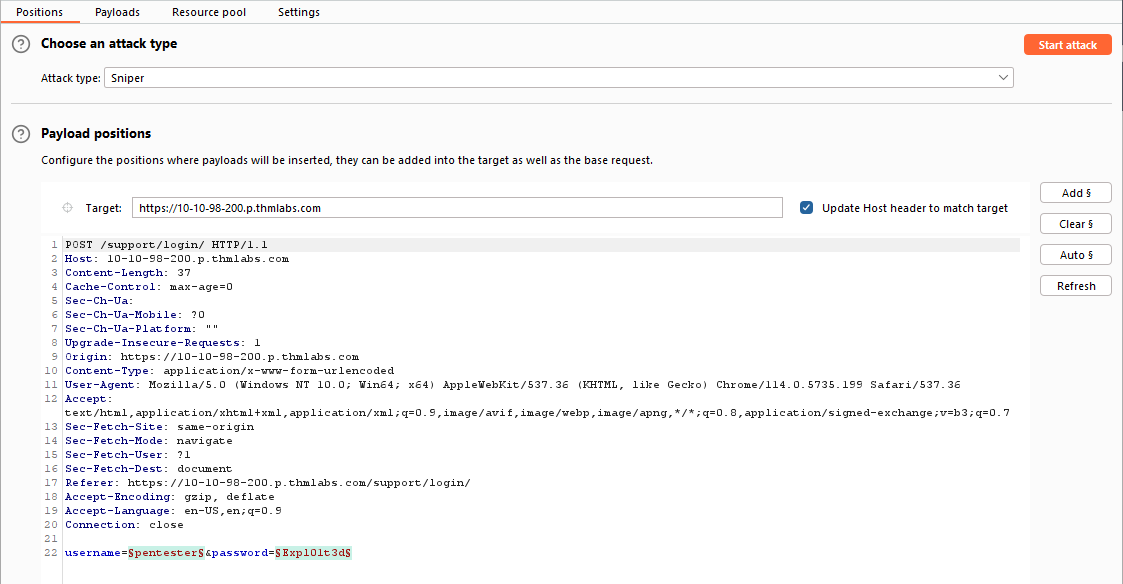
Burp suite Intruder Positions tab

Notice that Burp Suite automatically attempts to identify the most probable positions where payloads can be inserted. These positions are highlighted in green and enclosed by section marks (§).

On the right-hand side of the interface, we find the following buttons: Add §Clear §, and Auto §: - The Add § button allows us to define new positions manually by highlighting them within the request editor and then clicking the button. - The Clear § button removes all defined positions, providing a blank canvas where we can define our own positions. - The Auto § button automatically attempts to identify the most likely positions based on the request. This feature is helpful if we previously cleared the default positions and want them back.

The following GIF demonstrates the process of adding, clearing, and automatically reselecting positions: process of adding, clearing and automatically reselecting positions
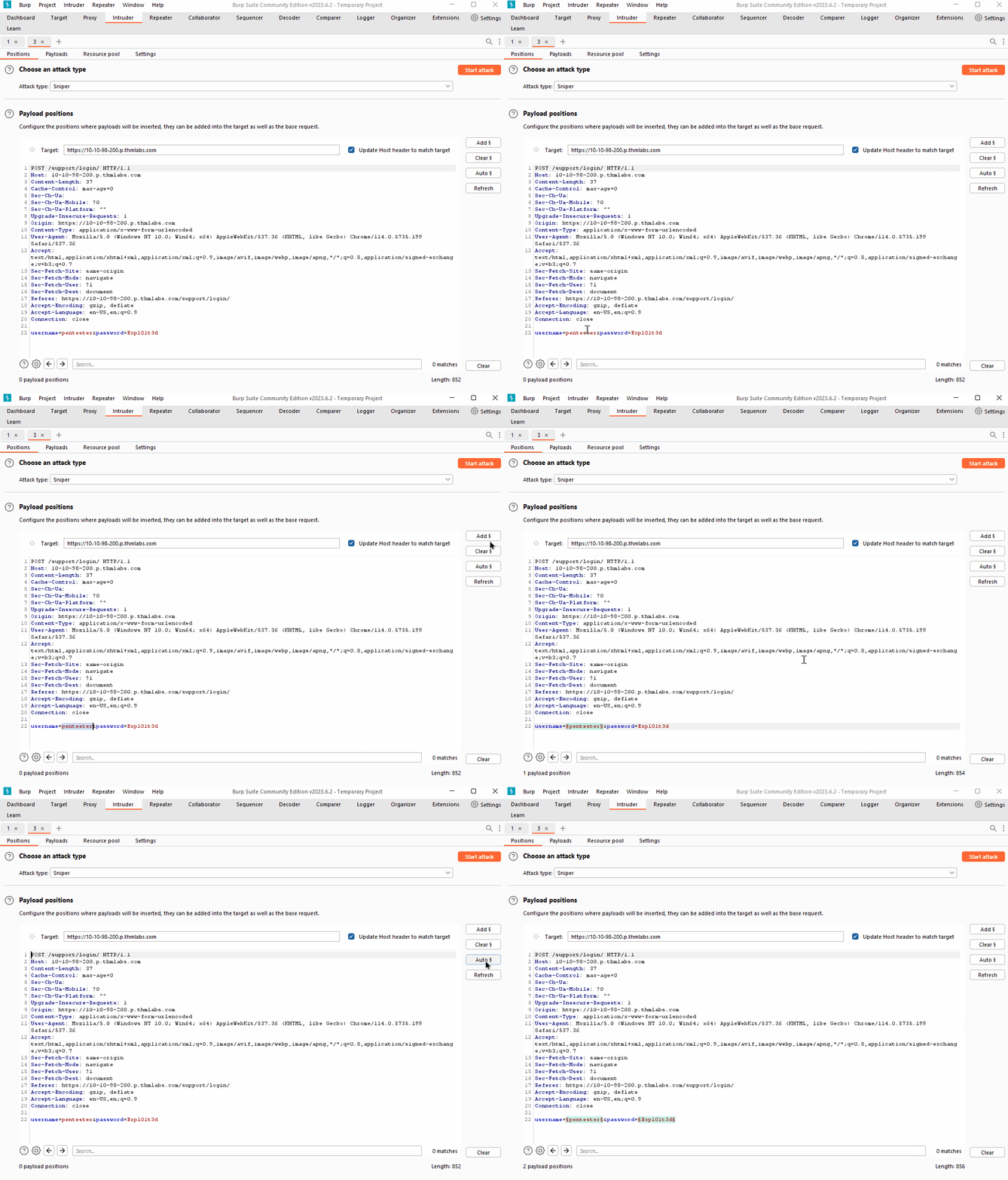
Take some time to familiarize yourself with adding, clearing, and auto-selecting positions using the Burp Suite Intruder interface.

Answer the questions below

What symbol defines the start and the end of a payload position?

§

Task 4 - Payloads

In the Payloads tab of Burp Suite Intruder, we can create, assign, and configure payloads for our attack. This sub-tab is divided into four sections: Four sections division of sub-tab  1. Payload Sets: * This section allows us to choose the position for which we want to configure a payload set and select the type of payload we want to use. * When using attack types that allow only a single payload set (Sniper or Battering Ram), the "Payload Set" dropdown will have only one option, regardless of the number of defined positions. * If we use attack types that require multiple payload sets (Pitchfork or Cluster Bomb), there will be one item in the dropdown for each position. !!! note  When assigning numbers in the "Payload Set" dropdown for multiple positions, follow a top-to-bottom, left-to-right order. For example, with two positions (username=§pentester§&password=§Expl01ted§), the first item in the payload set dropdown would refer to the username field, and the second item would refer to the password field. 2. Payload settings: * This section provides options specific to the selected payload type for the current payload set. * For example, when using the "Simple list" payload type, we can manually add or remove payloads to/from the set using the Add text box, Paste lines, or Load payloads from a file. The Remove button removes the currently selected line, and the Clear button clears the entire list. Be cautious with loading huge lists, as it may cause Burp to crash. * Each payload type will have its own set of options and functionality. Explore the options available to understand the range of possibilities. Payload settings 3. Payload Processing: * In this section, we can define rules to be applied to each payload in the set before it is sent to the target. * For example, we can capitalize every word, skip payloads that match a regex pattern, or apply other transformations or filtering. * While you may not use this section frequently, it can be highly valuable when specific payload processing is required for your attack. 4. Payload Encoding: * The section allows us to customize the encoding options for our payloads. * By default, Burp Suite applies URL encoding to ensure the safe transmission of payloads. However, there may be cases where we want to adjust the encoding behavior. * We can override the default URL encoding options by modifying the list of characters to be encoded or unchecking the "URL-encode these characters" checkbox.
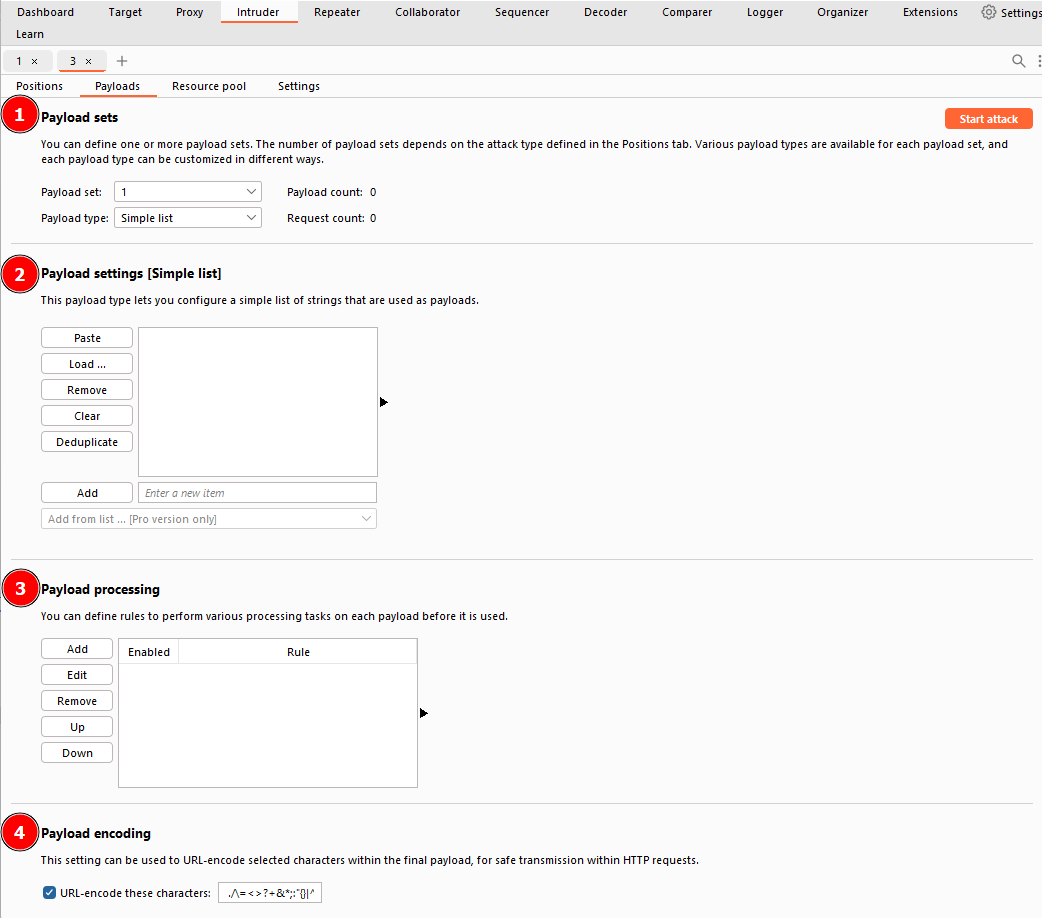
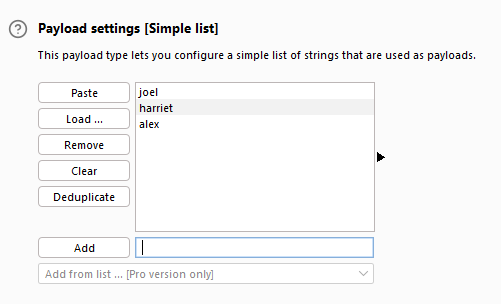
By leveraging these sections, we can create and customise payload sets to suit the specific requirements of our attacks. This level of control allows us to finely tune our payloads for effective testing and exploitation.

Answer the questions below

Which Payload processing rule could we use to add characters at the end of each payload in the set?

Add suffix

Task 5 - Introduction to Action Types

The Positions tab of Burp Suite Intruder has a dropdown menu for selecting the attack type. Intruder offers four attack types, each serving a specific purpose. Let's explore each of them:

  1. Sniper: The Sniper attack type is the default and most commonly used option. It cycles through the payloads, inserting one payload at a time into each position defined in the request. Sniper attacks iterate through all the payloads in a linear fashion, allowing for precise and focused testing.
  2. Battering ram: The Battering ram attack type differs from Sniper in that it sends all payloads simultaneously, each payload inserted into its respective position. This attack type is useful when testing for race conditions or when payloads need to be sent concurrently.
  3. Pitchfork: The Pitchfork attack type enables the simultaneous testing of multiple positions with different payloads. It allows the tester to define multiple payload sets, each associated with a specific position in the request. Pitchfork attacks are effective when there are distinct parameters that need separate testing.
  4. Cluster bomb: The Cluster bomb attack type combines the Sniper and Pitchfork approaches. It performs a Sniper-like attack on each position but simultaneously tests all payloads from each set. This attack type is useful when multiple positions have different payloads, and we want to test them all together.

Each attack type has its advantages and is suitable for different testing scenarios. Understanding their differences helps us select the appropriate attack type based on the testing objectives.

Answer the questions below

What attack type cycles through the payloads inserting one payload at a time into each position defined in the request?

Sniper

Task 6 - Sniper

The Sniper attack type is the default and most commonly used attack type in Burp Suite Intruder. It is particularly effective for single-position attacks, such as password brute-force or fuzzing for API endpoints. In a Sniper attack, we provide a set of payloads, which can be a wordlist or a range of numbers, and Intruder inserts each payload into each defined position in the request. Let's refer to our example template from before: Example Positions

    POST /support/login/ HTTP/1.1
    Host: 10.10.100.76
    User-Agent: Mozilla/5.0 (X11; Ubuntu; Linux x86_64; rv:80.0) Gecko/20100101 Firefox/80.0
    Accept: text/html,application/xhtml+xml,application/xml;q=0.9,image/webp,*/*;q=0.8
    Accept-Language: en-US,en;q=0.5
    Accept-Encoding: gzip, deflate
    Content-Type: application/x-www-form-urlencoded
    Content-Length: 37
    Origin: http://10.10.100.76
    Connection: close
    Referer: http://10.10.100.76/support/login/
    Upgrade-Insecure-Requests: 1

    username=§pentester§&password=§Expl01ted§   

In this example, we have two positions defined for the username and password body parameters. In a Sniper attack, Intruder takes each payload from the payload set and substitutes it into each defined position in turn. Assuming we have a wordlist with three words: burp, suite, and intruder, Intruder would generate six requests: | Request Number | Request Body | | -------------- | ------------------------------------ | | 1 | username=burp&password=Expl01ted | | 2 | username=suite&password=Expl01ted | | 3 | username=intruder&password=Expl01ted | | 4 | username=pentester&password=burp | | 5 | username=pentester&password=suite | | 6 | username=pentester&password=intruder |

Observe how Intruder starts with the first position (username) and substitutes each payload into it, then moves to the second position (password) and performs the same substitution with the payloads.

The total number of requests made by Intruder Sniper can be calculated as requests = numberOfWords * numberOfPositions.

The Sniper attack type is beneficial when we want to perform tests with single-position attacks, utilizing different payloads for each position. It allows for precise testing and analysis of different payload variations.

Answer the questions below

If you were using Sniper to fuzz three parameters in a request with a wordlist containing 100 words, how many requests would Burp Suite need to send to complete the attack?

300

How many sets of payloads will Sniper accept for conducting an attack?

1

Task 7 - Battering Ram

The Battering ram attack type in Burp Suite Intruder differs from Sniper in that it places the same payload in every position simultaneously, rather than substituting each payload into each position in turn. Let's refer back to our previous example template: Example Positions

    POST /support/login/ HTTP/1.1
    Host: 10.64.174.76
    User-Agent: Mozilla/5.0 (X11; Ubuntu; Linux x86_64; rv:80.0) Gecko/20100101 Firefox/80.0
    Accept: text/html,application/xhtml+xml,application/xml;q=0.9,image/webp,*/*;q=0.8
    Accept-Language: en-US,en;q=0.5
    Accept-Encoding: gzip, deflate
    Content-Type: application/x-www-form-urlencoded
    Content-Length: 37
    Origin: http://10.64.174.76
    Connection: close
    Referer: http://10.64.174.76/support/login/
    Upgrade-Insecure-Requests: 1

    username=§pentester§&password=§Expl01ted§              

Using the Battering Ram attack type with the same wordlist from before (burp, suite, and intruder), Intruder would generate three requests:

Request Number Request Body
1 username=burp&password=burp
2 username=suite&password=suite
3 username=intruder&password=intruder

As shown in the table, each payload from the wordlist is inserted into every position for each request made. In a Battering Ram attack, the same payload is thrown at every defined position simultaneously, providing a brute-force-like approach to testing.

The Battering Ram attack type is useful when we want to test the same payload against multiple positions at once without the need for sequential substitution.

In the upcoming tasks, we will explore further configurations and settings related to Intruder's Battering Ram attack type and examine its applications in different scenarios.

Answer the questions below

As a hypothetical question: You need to perform a Battering ram Intruder attack on the example request above.

If you have a wordlist with two words in it (admin and Guest) and the positions in the request template look like this:username=§pentester§&password=§Expl01ted§ What would the body parameters of the first request that Burp Suite sends be?

Answer

username=admin&password=admin

Task 8 - Pitchfork

The Pitchfork attack type in Burp Suite Intruder is similar to having multiple Sniper attacks running simultaneously. While Sniper uses one payload set to test all positions simultaneously, Pitchfork utilises one payload set per position (up to a maximum of 20) and iterates through them all simultaneously.

To better understand Pitchfork, let us revisit our brute-force example, but this time with two wordlists: 1. The first wordlist contains usernames: joel, harriet, and alex. 2. The second wordlist contains passwords: J03l, Emma1815, and Sk1ll.

We can use these two lists to perform a Pitchfork attack on the login form. Each request made during the attack would look like this:

Request Number Request Body
1 username=joel&password=J03l
2 username=harriet&password=Emma1815
3 username=alex&password=Sk1ll

As shown in the table, Pitchfork takes the first item from each list and substitutes them into the request, one per position. It then repeats this process for the next request by taking the second item from each list and substituting it into the template. Intruder continues this iteration until one or all of the lists run out of items. It's important to note that Intruder stops testing as soon as one of the lists is complete. Therefore, in Pitchfork attacks, it is ideal for the payload sets to have the same length. If the lengths of the payload sets differ, Intruder will only make requests until the shorter list is exhausted, and the remaining items in the longer list will not be tested.

The Pitchfork attack type is especially useful when conducting credential-stuffing attacks or when multiple positions require separate payload sets. It allows for simultaneous testing of multiple positions with different payloads.

In the upcoming tasks, we will explore further configurations and settings related to Intruder's Pitchfork attack type and explore its applications in different scenarios, including credential-stuffing attacks.

Answer the questions below

What is the maximum number of payload sets we can load into Intruder in Pitchfork mode?

20

Task 9 - Cluster Bomb

The Cluster bomb attack type in Burp Suite Intruder allows us to choose multiple payload sets, one per position (up to a maximum of 20). Unlike Pitchfork, where all payload sets are tested simultaneously, Cluster bomb iterates through each payload set individually, ensuring that every possible combination of payloads is tested.

To illustrate the Cluster bomb attack type, let's use the same wordlists as before: * Usernames: joelharriet, and alex. * Passwords: J03lEmma1815, and Sk1ll.

In this example, let's assume that we don't know which password belongs to which user. We have three users and three passwords, but the mappings are unknown. In this case, we can use a Cluster bomb attack to try every combination of values. The request table for our username and password positions would look like this:

Request Number Request Body
1 username=joel&password=J03l
2 username=harriet&password=J03l
3 username=alex&password=J03l
4 username=joel&password=Emma1815
5 username=harriet&password=Emma1815
6 username=alex&password=Emma1815
7 username=joel&password=Sk1ll
8 username=harriet&password=Sk1ll
9 username=alex&password=Sk1ll

As shown in the table, the Cluster bomb attack type iterates through every combination of the provided payload sets. It tests every possibility by substituting each value from each payload set into the corresponding position in the request.

Cluster bomb attacks can generate a significant amount of traffic as it tests every combination. The number of requests made by a Cluster bomb attack can be calculated by multiplying the number of lines in each payload set together. It's important to be cautious when using this attack type, especially when dealing with large payload sets. Additionally, when using Burp Community and its Intruder rate-limiting, the execution of a Cluster bomb attack with a moderately sized payload set can take a significantly longer time.

The Cluster bomb attack type is particularly useful for credential brute-forcing scenarios where the mapping between usernames and passwords is unknown.

In the upcoming tasks, we will explore further configurations and settings related to Intruder's Cluster bomb attack type and examine its applications in different scenarios.

Answer the questions below

??? question "We have three payload sets. The first set contains 100 lines, the second contains 2 lines, and the third contains 30 lines. How many requests will Intruder make using these payload sets in a Cluster bomb attack?" 6000

Task 10 - Practical Example

To put our theoretical knowledge into practice, we will attempt to gain access to the support portal located at http://10.64.174.76/support/login. This portal follows a typical login structure, and upon inspecting its source code, we find that no protective measures have been implemented: Support Login Form Source Code

<form method="POST">
    <div class="form-floating mb-3">
        <input class="form-control" type="text" name=username  placeholder="Username" required>
        <label for="username">Username</label>
    </div>
    <div class="form-floating mb-3">
        <input class="form-control" type="password" name=password  placeholder="Password" required>
        <label for="password">Password</label>
    </div>
    <div class="d-grid"><button class="btn btn-primary btn-lg" type="submit">Login!</button></div>
</form>

Given the absence of protective measures, we have multiple options to exploit this form, including a cluster bomb attack for brute-forcing the credentials. However, we have an easier approach at our disposal.

Approximately three months ago, Bastion Hosting fell victim to a cyber attack, compromising employee usernames, email addresses, and plaintext passwords. While the affected employees were instructed to change their passwords promptly, there is a possibility that some disregarded this advice.

As we possess a list of known usernames, each accompanied by a corresponding password, we can leverage a credential-stuffing attack instead of a straightforward brute-force. This method proves advantageous and significantly quicker, especially when utilising the rate-limited version of Intruder. To access the leaked credentials, download the file from the target machine using the following command in the AttackBox: wget http://MACHINE.IP/Credentials/BastionHostingCreds.zip

Tutorial

To solve this example, follow these steps to conduct a credential-stuffing attack with Burp Macros:

  1. Download and Prepare Wordlists:
    • Download and extract the BastionHostingCreds.zip file.
    • Within the extracted folder, find the following wordlists:
      • emails.txt
      • usernames.txt
      • passwords.txt
      • combined.txt
  2. These contain lists of leaked emails, usernames, and passwords, respectively. The last list contains the combined email and password lists. We will be using the usernames.txt and passwords.txt lists.
  3. Navigate to http://10.64.174.76/support/login in your browser. Activate the Burp Proxy and attempt to log in, capturing the request in your proxy. Note that any credentials will suffice for this step.
  4. Send the captured request from the Proxy to Intruder by right-clicking and selecting "Send to Intruder" or using Ctrl + I.
  5. In the "Positions" sub-tab, ensure that only the username and password parameters are selected. Clear any additional selections, such as session cookies.
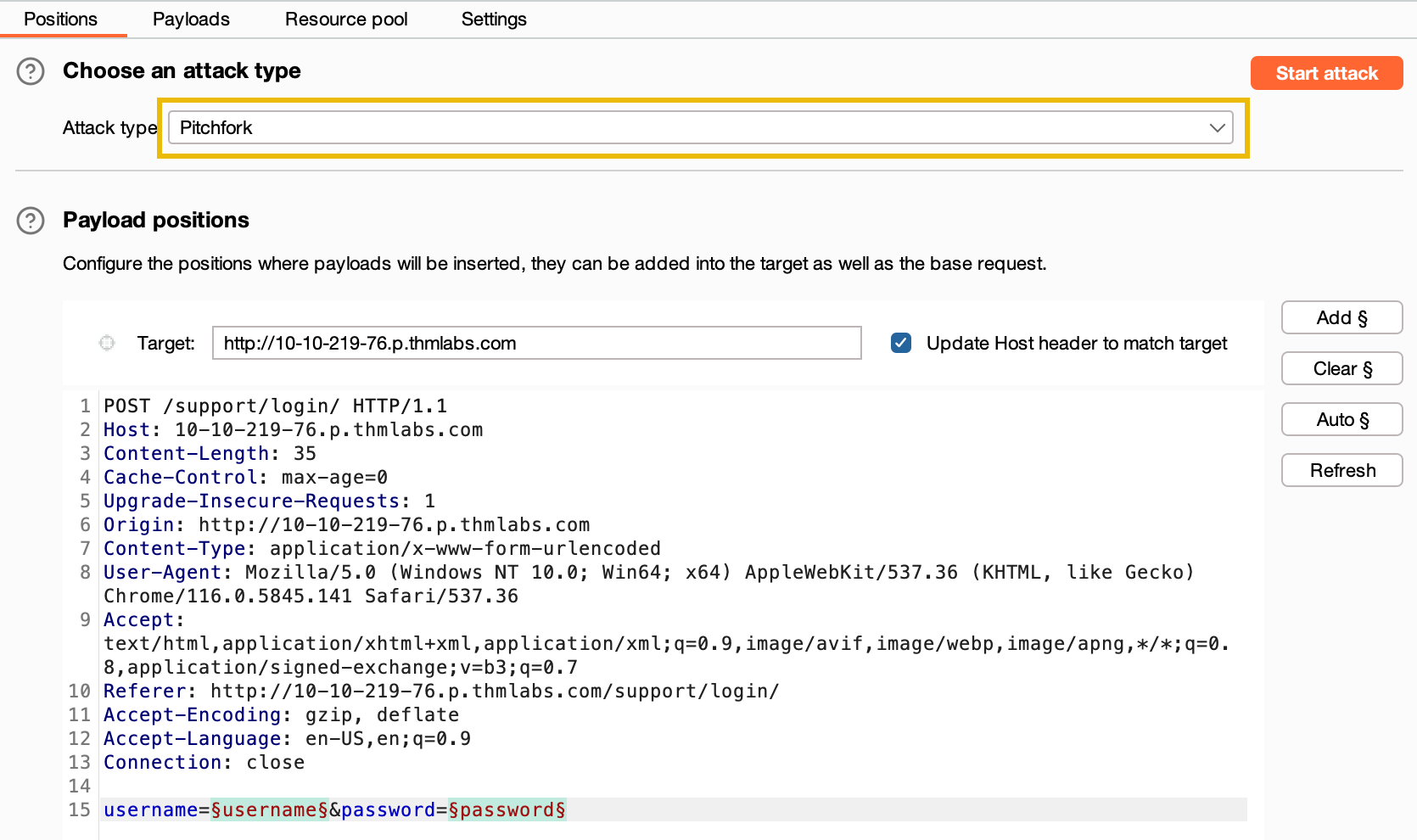
  6. Set the Attack type to "Pitchfork." Set the attack type to "Pitchfork"
  7. Move to the "Payloads" sub-tab. You will find two payload sets available for the username and password fields.  payload settings
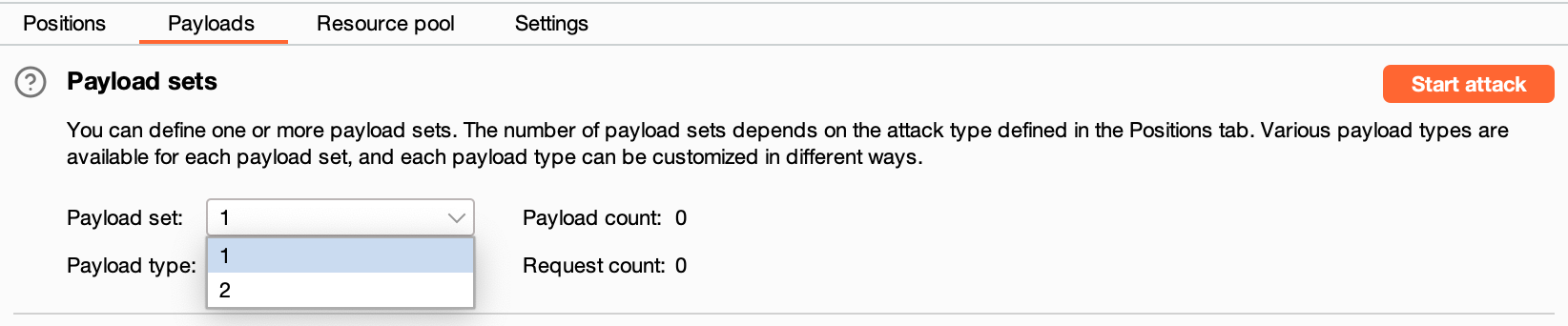
  8. In the first payload set (for usernames), go to "Payload Options," choose "Load," and select the usernames.txt list.
    • Repeat the same process for the second payload set (for passwords) using the passwords.txt list.
  9. Click the Start Attack button to begin the credential-stuffing attack. A warning about rate-limiting may appear; click OK to proceed. The attack will take a few minutes to complete in Burp Community.
  10. Once the attack starts, a new window will display the results of the requests. However, as Burp sent 100 requests, we need to identify which one(s) were successful. Since the response status codes are not differentiating successful and unsuccessful attempts (all are 302 redirects), we need to use the response length to distinguish them.
  11. Click on the header for the "Length" column to sort the results by byte length. Look for the request with a shorter response length, indicating a successful login attempt.
  12. To confirm the successful login attempt, use the credentials from the request with the shorter response length to log in.

Answer the questions below

What username and password combination indicates a successful login attempt? The answer format is "username:password".

m.rivera:letmein1

Task 11 - Practical Challenge

Having gained access to the support system, we now have the opportunity to explore its functionalities and see what actions we can perform.

Upon accessing the home interface, we are presented with a table displaying various tickets. Clicking on any row redirects us to a page where we can view the complete ticket. By examining the URL structure, we observe that these pages are numbered in the following format: http://MACHINE.IP/support/ticket/NUMBER

The numbering system indicates that the tickets are assigned integer identifiers rather than complex and hard-to-guess IDs. This information is significant because it suggests two possible scenarios: 1. Access Control: The endpoint may be properly configured to restrict access only to tickets assigned to our current user. In this case, we can only view tickets associated with our account. 2. IDOR Vulnerability: Alternatively, the endpoint may lack appropriate access controls, leading to a vulnerability known as Insecure Direct Object References (IDOR). If this is the case, we could potentially exploit the system and read all existing tickets, regardless of the assigned user. To investigate further, we will utilize the Intruder tool to fuzz the /support/ticket/NUMBER endpoint. This approach will help us determine whether the endpoint has been correctly configured or if an IDOR vulnerability is present. Let's proceed with the fuzzing process! Note: You have to capture a request while being logged in.

Answer the questions below

Which attack type is best suited for this task?

Sniper

Configure an appropriate position and payload (the tickets are stored at values between 1 and 100), then start the attack. You should find that at least five tickets will be returned with a status code 200, indicating that they exist.
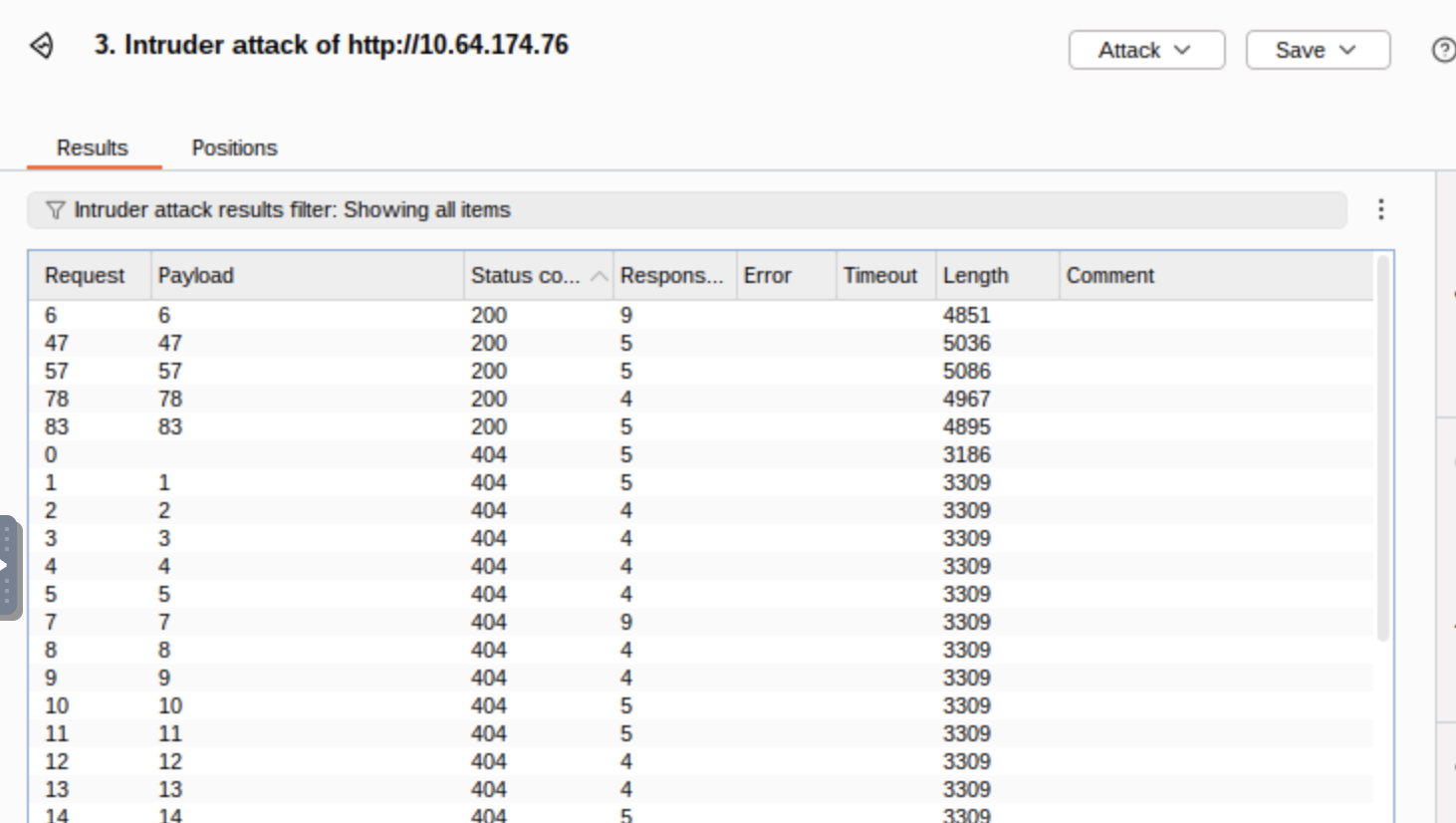
task 11 output  Either using the Response tab in the Attack Results window or by looking at each successful (i.e. 200 code) request manually in your browser, find the ticket that contains the flag.

What is the flag?

THM{MTMxNTg5NTUzMWM0OWRlYzUzMDVjMzJl}

Task 12 - Extra Mile Challenge

In this extra-mile exercise, we will tackle a more challenging variant of the credential-stuffing attack we previously performed. However, this time, additional measures have been implemented to make brute-forcing more difficult. If you are comfortable using Burp Macros, you can attempt this challenge without the instructions below. Otherwise, let's proceed with the step-by-step approach.

Catching the Request

Begin by capturing a request to http://MACHINE_IP/admin/login/ and reviewing the response. Here is an example of the response:

Example Response
HTTP/1.1 200 OK
Server: nginx/1.18.0 (Ubuntu)
Date: Fri, 20 Aug 2021 22:31:16 GMT
Content-Type: text/html; charset=utf-8
Connection: close
Set-Cookie: session=eyJ0b2tlbklEIjoiMzUyNTQ5ZjgxZDRhOTM5YjVlMTNlMjIzNmI0ZDlkOGEifQ.YSA-mQ.ZaKKsUnNsIb47sjlyux_LN8Qst0; HttpOnly; Path=/
Vary: Cookie
Front-End-Https: on
Content-Length: 3922
---
<form method="POST">
    <div class="form-floating mb-3">
        <input class="form-control" type="text" name=username  placeholder="Username" required>
        <label for="username">Username</label>
    </div>
    <div class="form-floating mb-3">
        <input class="form-control" type="password" name=password  placeholder="Password" required>
        <label for="password">Password</label>
    </div>
    <input type="hidden" name="loginToken" value="84c6358bbf1bd8000b6b63ab1bd77c5e">
    <div class="d-grid"><button class="btn btn-warning btn-lg" type="submit">Login!</button></div>
</form>

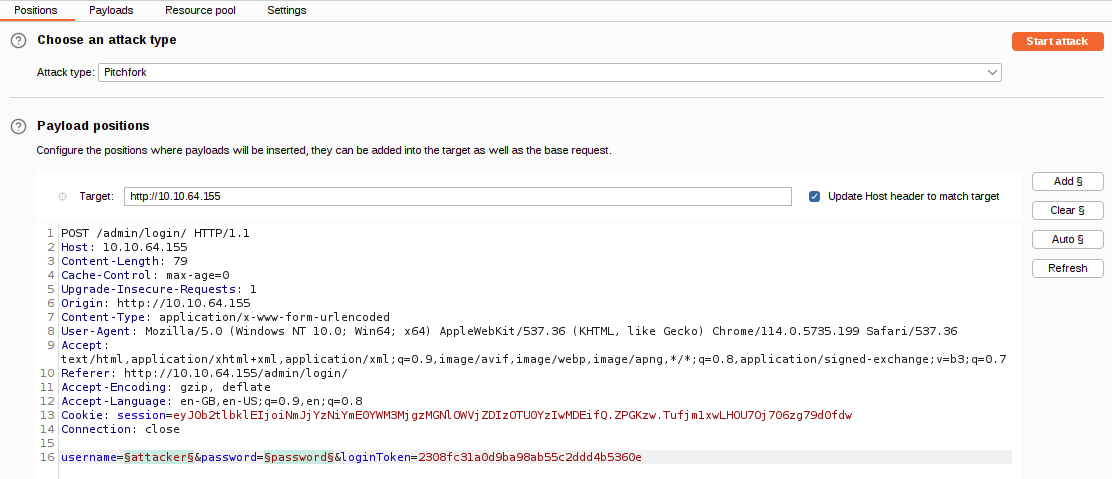
In this response, we notice that alongside the username and password fields, there is now a session cookie set, as well as a CSRF (Cross-Site Request Forgery) token in the form as a hidden field. Refreshing the page reveals that both the session cookie and the loginToken change with each request. This means that for every login attempt, we need to extract valid values for both the session cookie and the loginToken.

To accomplish this, we will use Burp Macros to define a repeated set of actions (macro) to be executed before each request. This macro will extract unique values for the session cookie and loginToken, replacing them in every subsequent request of our attack.

Tutorial - Burp Macros
  1. Navigate to http://MACHINE_IP/admin/login/. Activate Intercept in the Proxy module and attempt to log in. Capture the request and send it to Intruder.
  2. Configure the positions the same way as we did for brute-forcing the support login:
    • Set the attack type to "Pitchfork".
    • Clear all predefined positions and select only the username and password form fields. Our macro will handle the other two positions.
    • configuring postions
  3. Now switch over to the Payloads tab and load in the same username and password wordlists we used for the support login attack.Up until this point, we have configured Intruder in almost the same way as our previous credential stuffing attack; this is where things start to get more complicated.
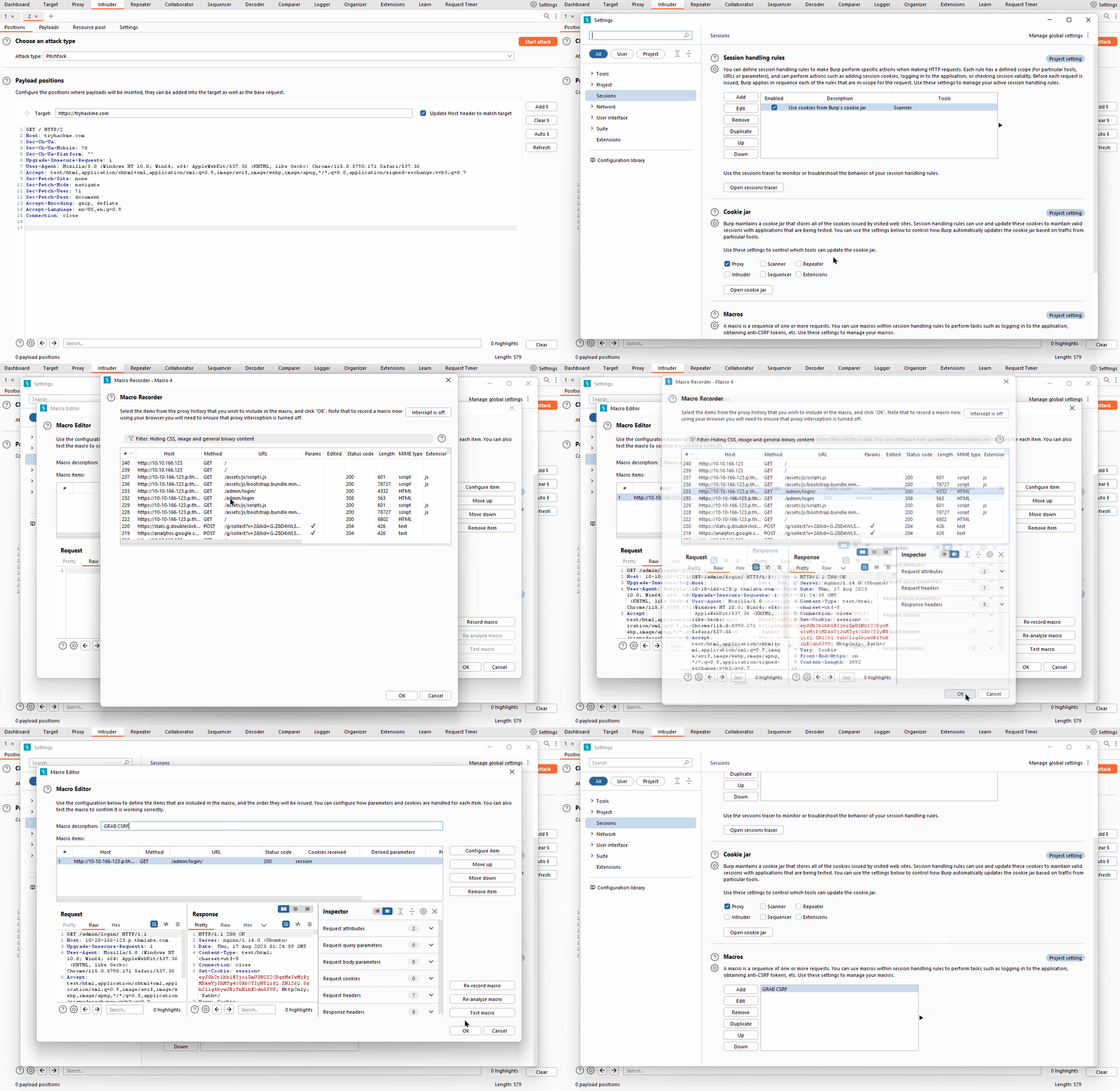
  4. With the username and password parameters handled, we now need to find a way to grab the ever-changing loginToken and session cookie. Unfortunately, "recursive grep" won't work here due to the redirect response, so we can't do this entirely within Intruder – we will need to build a macro.Macros allow us to perform the same set of actions repeatedly. In this case, we simply want to send a GET request to /admin/login/.Fortunately, setting this up is a straightforward process.
    • Switch over to the main "Settings" tab at the top-right of Burp.
    • Click on the "Sessions" category.
    • Scroll down to the bottom of the category to the "Macros" section and click the Add button.
    • The menu that appears will show us our request history. If there isn't a GET request to http://MACHINE_IP/admin/login/ in the list already, navigate to this location in your browser, and you should see a suitable request appear in the list.
    • With the request selected, click OK.
    • Finally, give the macro a suitable name, then click OK again to finish the process.
  5. There are a lot of steps here, comparatively speaking, so the following GIF shows the entire process: macros process gif
  6. Now that we have a macro defined, we need to set Session Handling rules that define how the macro should be used.
    • Still in the "Sessions" category of the main settings, scroll up to the "Session Handling Rules" section and choose to Add a new rule.
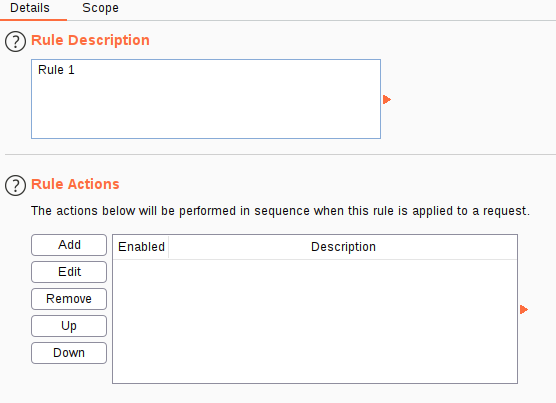
    • A new window will pop up with two tabs in it: "Details" and "Scope". We are in the Details tab by default.
    • macros details
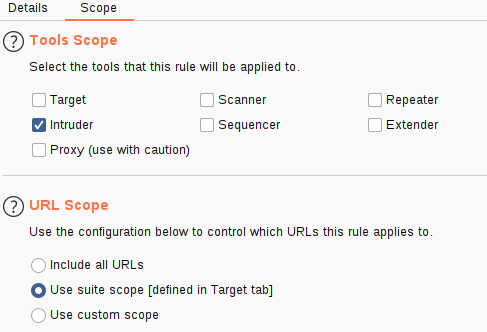
    • Fill in an appropriate description, then switch to the Scope tab.
    • In the "Tools Scope" section, deselect every checkbox other than Intruder – we do not need this rule to apply anywhere else.
    • In the "URL Scope" section, choose "Use suite scope"; this will set the macro to only operate on sites that have been added to the global scope (as was discussed in Burp Basics). If you have not set a global scope, keep the "Use custom scope" option as default and add http://MACHINE_IP/ to the scope in this section.
    • macros scope
  7. Now we need to switch back over to the Details tab and look at the "Rule Actions" section.
    • Click the Add button – this will cause a dropdown menu to appear with a list of actions we can add.
    • Select "Run a Macro" from this list.
    • In the new window that appears, select the macro we created earlier.
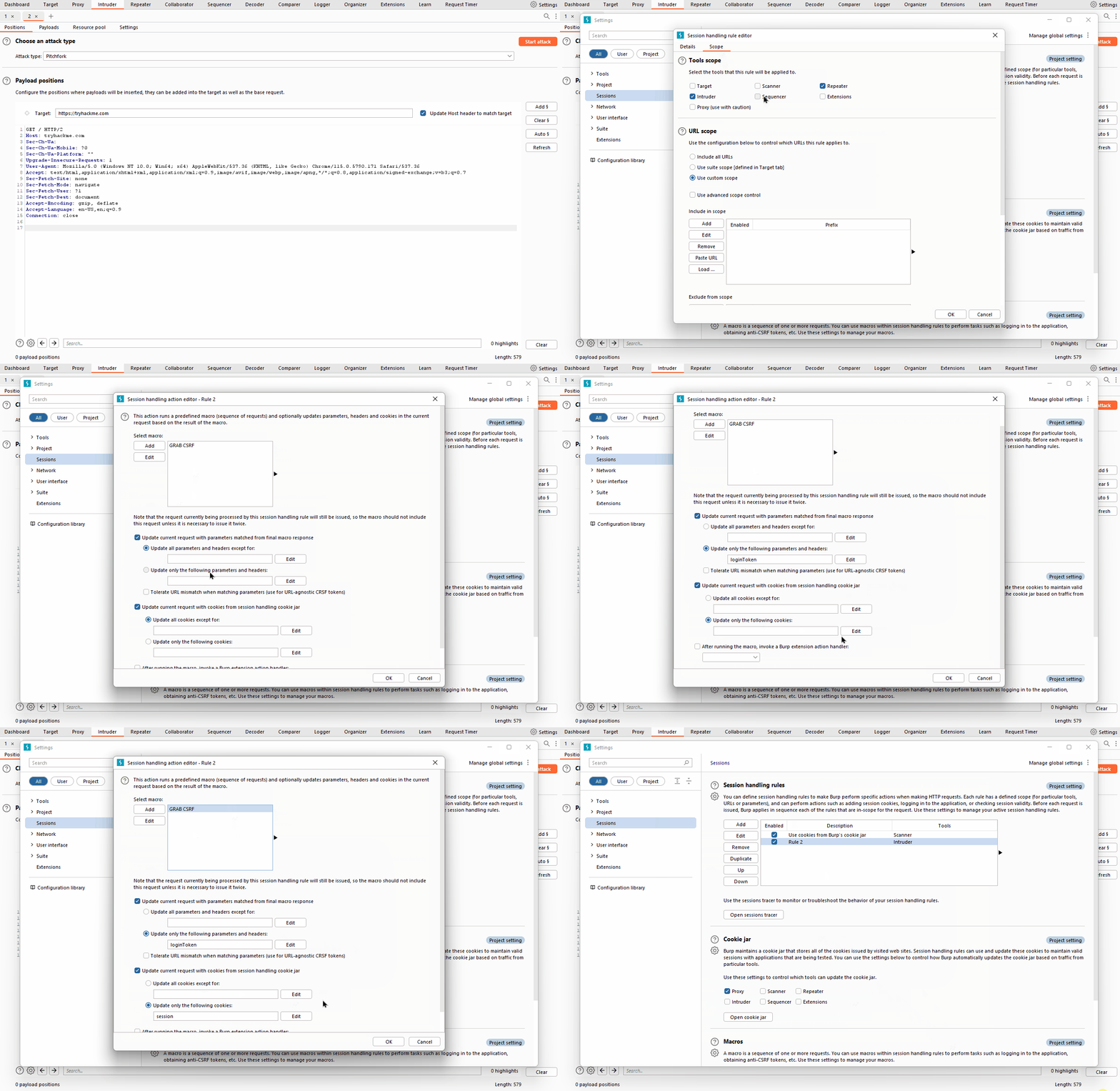
  8. As it stands, this macro will now overwrite all of the parameters in our Intruder requests before we send them; this is great, as it means that we will get the loginTokens and session cookies added straight into our requests. That said, we should restrict which parameters and cookies are being updated before we start our attack:
    • Select "Update only the following parameters and headers", then click the Edit button next to the input box below the radio button.
    • In the "Enter a new item" text field, type "loginToken". Press Add, then Close.
    • Select "Update only the following cookies", then click the relevant Edit button.
    • Enter "session" in the "Enter a new item" text field. Press Add, then Close.
    • Finally, press OK to confirm our action.
  9. The following GIF demonstrates this final stage of the process: final stage of macros setup
  10. Click OK, and we're done!
  11. You should now have a macro defined that will substitute in the CSRF token and session cookie. All that's left to do is switch back to Intruder and start the attack! !!! note  You should be getting 302 status code responses for every request in this attack. If you see 403 errors, then your macro is not working properly.
  12. As with the support login credential stuffing attack we carried out, the response codes here are all the same (302 Redirects). Once again, order your responses by length to find the valid credentials. Your results won't be quite as clear-cut as last time – you will see quite a few different response lengths: however, the response that indicates a successful login should still stand out as being significantly shorter.
  13. Use the credentials you just found to log in (you may need to refresh the login page before entering the credentials).

Answer the questions below

What username and password combination indicates a successful login attempt? The answer format is "username:password".

o.bennett:bella1
Burp Suite: Repeater - TryHackMe Walkthrough

Task 1

Welcome to the Burp Suite Repeater room!

In this room, we will explore the advanced capabilities of the Burp Suite framework by focusing on the Burp Suite Repeater module. Building upon the foundational knowledge covered in the Burp Basics room, we will delve into the powerful features of the Repeater tool. You will learn how to manipulate and resend captured requests, and we will explore the various options and functionalities available in this exceptional module. Throughout the room, we will provide practical examples, including a real-world exercise, to solidify your understanding of the concepts discussed.

If you are new to Burp Suite or have not completed the Burp Basics room, we recommend doing so before proceeding. The Burp Basics room establishes the fundamental knowledge necessary for this room and will enhance your learning experience.

Deploy the target VM attached to this task by pressing the green Start Machine button. Also, start the AttackBox by pressing the blue Start AttackBox button at the top of this room if you are not using your own machine. Then, start Burp and follow along with the next tasks.

Answer

No answer needed.

Task 2

What is Repeater?

Before using Burp Suite Repeater, let's familiarize ourselves with its purpose and functionality.

In essence, Burp Suite Repeater enables us to modify and resend intercepted requests to a target of our choosing. It allows us to take requests captured in the Burp Proxy and manipulate them, sending them repeatedly as needed. Alternatively, we can manually create requests from scratch, similar to using a command-line tool like cURL.

The ability to edit and resend requests multiple times makes Repeater invaluable for manual exploration and testing of endpoints. It provides a user-friendly graphical interface for crafting request payloads and offers various views of the response, including a rendering engine for a graphical representation.

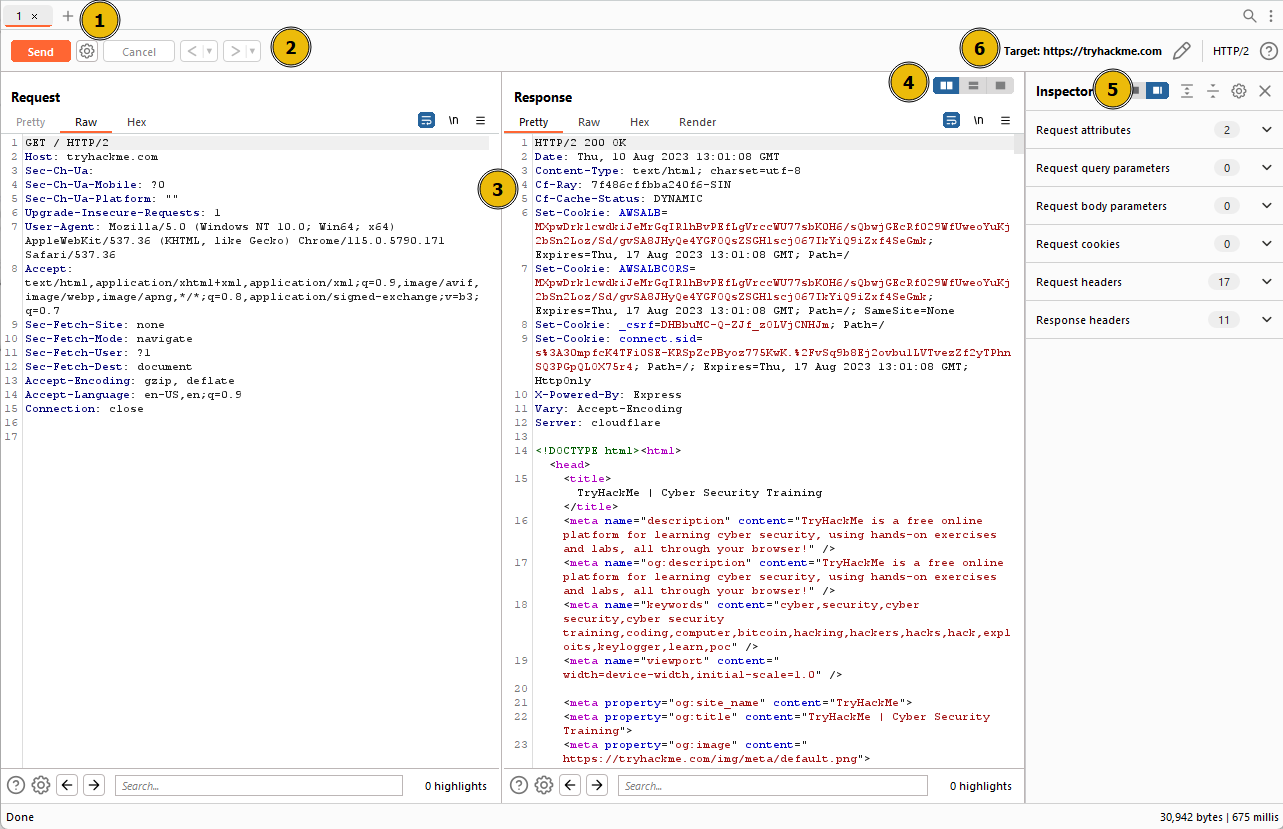
The Repeater interface consists of six main sections, as depicted in the annotated diagram below:

6 Sections of Repeater marked

  1. Request List: Located at the top left of the tab, it displays the list of Repeater requests. Multiple requests can be managed simultaneously, and each new request sent to Repeater will appear here.

  2. Request Controls: Positioned directly beneath the request list, these controls allow us to send a request, cancel a hanging request, and navigate through the request history.

  3. Request and Response View: Occupying the majority of the interface, this section displays the Request and Response views. We can edit the request in the Request view and then forward it, while the corresponding response will be shown in the Response view.

  4. Layout Options: Located at the top-right of the Request/Response view, these options enable us to customize the layout of the Request and Response views. The default setting is a side-by-side (horizontal) layout, but we can also choose a vertical layout or combine them in separate tabs.

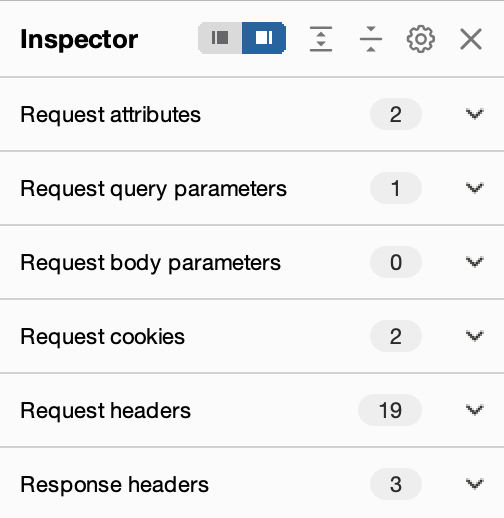
  5. Inspector: Positioned on the right-hand side, the Inspector allows us to analyze and modify requests in a more intuitive manner than using the raw editor. We will explore this feature in a later task.

  6. Target: Situated above the Inspector, the Target field specifies the IP address or domain to which the requests are sent. When requests are sent to Repeater from other Burp Suite components, this field is automatically populated.

Answer

Questions: Which sections gives us a more intuitive control over requests?

Answer

Inspector

Task 3

Basic Usage

We know what the application's interface looks like at this point, but how can we effectively utilize it?

While manual request crafting is an option, it is more common to capture a request using the Proxy module and subsequently transmit it to Repeater for further editing and resending.

Once a request has been captured in the Proxy module, we can send it to Repeater by either right-clicking on the request and selecting Send to Repeater, or by utilizing the keyboard shortcut Ctrl + R.

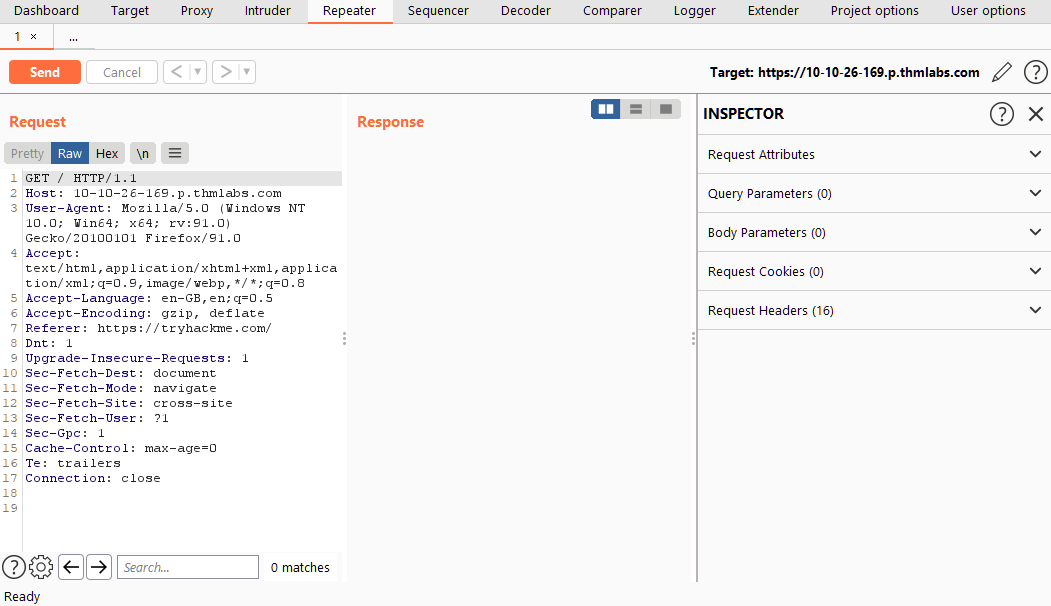
Shifting our focus back to Repeater, we can observe that our captured request is now accessible in the Request view:

Observing captured requests in the Repeater tab

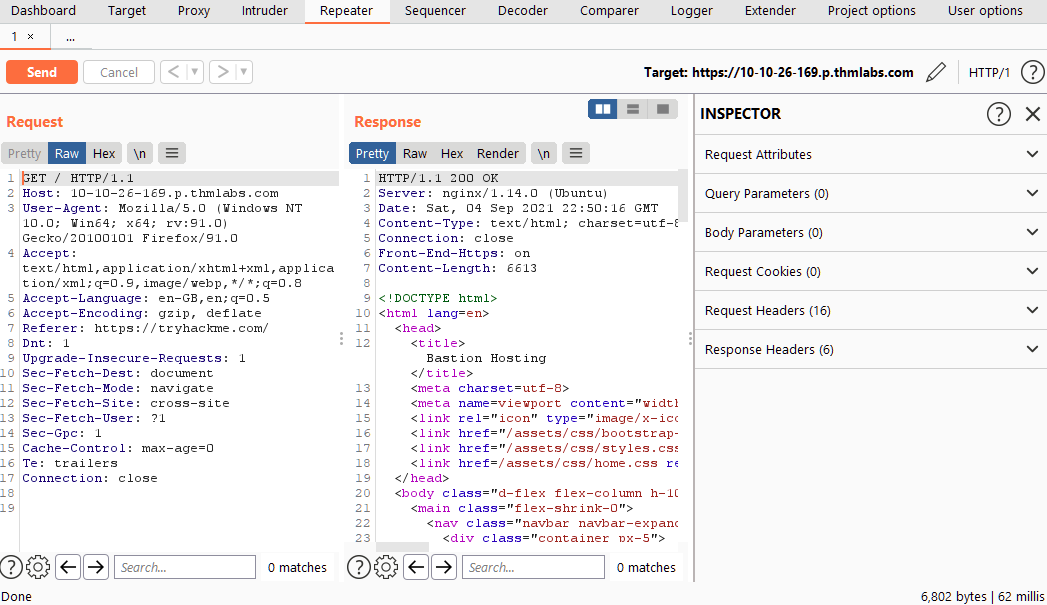
Both the Target and Inspector sections now display relevant information, albeit we are currently lacking a response. Upon clicking the Send button, the Response view swiftly populates:

Response populating after request is sent

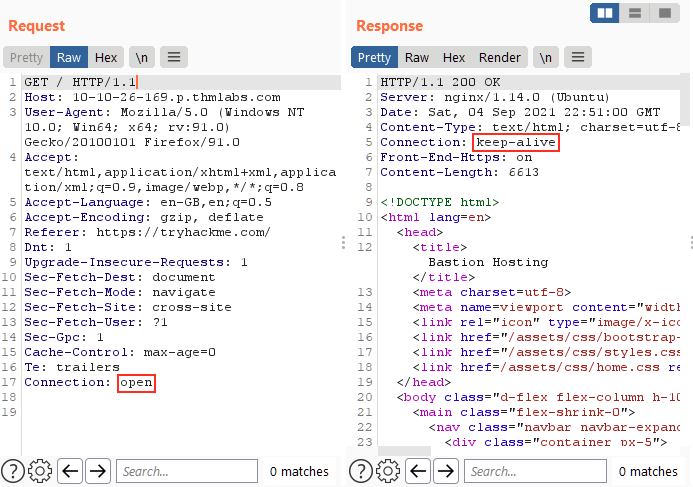
Should we wish to modify any aspect of the request, we can simply type within the Request view and press Send once again. This action will update the Response view on the right accordingly. For instance, altering the Connection header to "open" instead of "close" yields a response with a Connection header containing the value "keep-alive":

Connection header containing Keep-alive value

Furthermore, we can utilize the history buttons situated to the right of the Send button to navigate through our modification history, allowing us to move forward or backwards as needed.

Answer

Questions:

Which view will populate when sending a request from the Proxy module to Repeater?

Answer

Request

Task 4

Message Analysis Toolbar

Repeater provides us with various request and response presentation options, ranging from hexadecimal output to a fully rendered page.

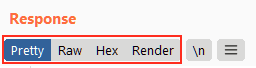
To explore these options, we can refer to the section located above the response box, where the following four view buttons are available:

Response options: Pretty, Raw, Hex, Header

We are presented with the following display choices:

  1. Pretty: This is the default option, which takes the raw response and applies slight formatting enhancements to improve readability.

  2. Raw: This option displays the unmodified response directly received from the server without any additional formatting.

  3. Hex: By selecting this view, we can examine the response in a byte-level representation, which is particularly useful when dealing with binary files.

  4. Render: The render option allows us to visualize the page as it would appear in a web browser. While not commonly utilised in Repeater, as our focus is usually on the source code, it still offers a valuable feature. For most scenarios, the Pretty option is generally sufficient. However, it is beneficial to be acquainted with the usage of the other three options.

Adjacent to the view buttons, on the right-hand side, we find the Show non-printable characters button (\n). This functionality enables the display of characters that may not be visible with the Pretty or Raw options. For example, each line in the response typically ends with the characters \r\n, representing a carriage return followed by a new line. These characters play an important role in the interpretation of HTTP headers.

While not mandatory for most tasks, this option can prove advantageous in certain situations.

Answer

Questions:

Which option allows us to visualize the page as it would appear in a web browser?

Answer

Render

Task 5

Inspector

Inspector is a supplementary feature to the Request and Response views in the Repeater module. It is also used to obtain a visually organized breakdown of requests and responses, as well as for experimenting to see how changes made using the higher-level Inspector affect the equivalent raw versions.

Inspector can be utilized both in the Proxy and Repeater module. In both instances, it is situated on the far-right side of the window, presenting a list of components within the request and response:

Inspector feature

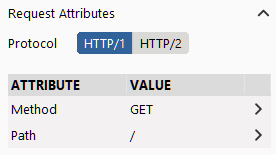
Among these components, the sections pertaining to the request can typically be modified, enabling the addition, editing, and removal of items. For instance, in the Request Attributes section, we can alter elements related to the location, method, and protocol of the request. This includes modifying the desired resource to retrieve, changing the HTTP method from GET to another variant, or switching the protocol from HTTP/1 to HTTP/2:

Altering request attributes

Other sections available for viewing and/or editing include:

  1. Request Query Parameters: These refer to data sent to the server via the URL. For example, in a GET request like https://admin.tryhackme.com/?redirect=false, the query parameter redirect has a value of "false".

  2. Request Body Parameters: Similar to query parameters, but specific to POST requests. Any data sent as part of a POST request will be displayed in this section, allowing us to modify the parameters before resending.

  3. Request Cookies: This section contains a modifiable list of cookies sent with each request.

  4. Request Headers: It enables us to view, access, and modify (including adding or removing) any headers sent with our requests. Editing these headers can be valuable when examining how a web server responds to unexpected headers.

  5. Response Headers: This section displays the headers returned by the server in response to our request. It cannot be modified, as we have no control over the headers returned by the server. Note that this section becomes visible only after sending a request and receiving a response.

While the textual representation of these components can be found within the Request and Response views, Inspector's tabular format provides a convenient way to visualise and interact with them. Experimenting with header additions, removals, and edits in Inspector helps grasp how the corresponding raw version changes in response.

Answer

Questions:

Which section in Inspector is specific to POST requests?

Answer

Body Parameters

Task 6

Practical Example

Repeater is particularly well-suited for tasks requiring repetitive sending of similar requests, typically with minor modifications. This is particularly useful for activities such as manual testing for SQL Injection vulnerabilities (to be covered in a forthcoming task), attempting to bypass web application firewall filters, or adjusting parameters in a form submission.

Let's begin with an exceedingly simple example: Utilizing Repeater to modify the headers of a request sent to a target.

Capture a request to http://MACHINE_IP/ in the Proxy module and send it to Repeater.

Send the request once from Repeater — you should see the HTML source code for the page you requested in the Response view.

Try viewing this in one of the other display options (e.g. Hex).

Using Inspector (or manually, if you prefer), add a header called FlagAuthorised and set it to have a value of True, as shown below:

    GET / HTTP/1.1
    Host: MACHINE_IP
    User-Agent: Mozilla/5.0 (X11; Ubuntu; Linux x86_64; rv:80.0) Gecko/20100101 Firefox/80.0
    Accept: text/html,application/xhtml+xml,application/xml;q=0.9,image/webp,*/*;q=0.8
    Accept-Language: en-US,en;q=0.5
    Accept-Encoding: gzip, deflate
    Connection: close
    Upgrade-Insecure-Requests: 1
    FlagAuthorised: True

Burp Suite: The Basics | TryHackMe Walkthrough

Task 1 - Welcome to Burp Suite Basics

This particular room aims to understand the basics of the Burp Suite web application security testing framework. Our focus will revolve around the following key aspects:

  1. A thorough introduction to Burp Suite.
  2. A comprehensive overview of the various tools available within the framework.
  3. Detailed guidance on the process of installing Burp Suite on your system.
  4. Navigating and configuring Burp Suite.

We will also introduce the core of the Burp Suite framework, which is the Burp Proxy. It is important to note that this room primarily serves as a foundational resource for acquiring knowledge about Burp Suite. Subsequent rooms in the Burp module will adopt a more practical approach. Thus, this room will contain a greater emphasis on theoretical content. If you have not yet utilised Burp Suite, it is recommended to carefully read the provided information and actively engage with the tool. Experimentation is essential for grasping the fundamentals of this framework. Combining the information presented here with hands-on exploration will establish a strong foundation for utilising the framework. This will significantly assist you in future rooms.

Info

Nothing to solve for task one. So let's move on!

Task 2 - What is Burp Suite?

In essence, Burp Suite is a Java-based framework designed to serve as a comprehensive solution for conducting web application penetration testing. It has become the industry standard tool for hands-on security assessments of web and mobile applications, including those that rely on application programming interfaces (APIs).

Simply put, Burp Suite captures and enables manipulation of all the HTTP/HTTPS traffic between a browser and a web server. This fundamental capability forms the backbone of the framework. By intercepting requests, users have the flexibility to route them to various components within the Burp Suite framework, which we will explore in upcoming sections. The ability to intercept, view, and modify web requests before they reach the target server or even manipulate responses before they are received by our browser makes Burp Suite an invaluable tool for manual web application testing.

Burp Suite is available in different editions. For our purposes, we will focus on the Burp Suite Community Edition, which is freely accessible for non-commercial use within legal boundaries. However, it's worth noting that Burp Suite also offers Professional and Enterprise editions, which come with advanced features and require licensing:

  1. Burp Suite Professional is an unrestricted version of Burp Suite Community. It comes with features such as:

    • An automated vulnerability scanner.
    • A fuzzer/brute-forcer that isn't rate limited.
    • Saving projects for future use and report generation.
    • A built-in API to allow integration with other tools.
    • Unrestricted access to add new extensions for greater functionality.
    • Access to the Burp Suite Collaborator (effectively providing a unique request catcher self-hosted or running on a Portswigger-owned server).

    In short, Burp Suite Professional is a highly potent tool, making it a preferred choice for professionals in the field.

  2. Burp Suite Enterprise, in contrast to the community and professional editions, is primarily utilized for continuous scanning. It features an automated scanner that periodically scans web applications for vulnerabilities, similar to how tools like Nessus perform automated infrastructure scanning. Unlike the other editions, which allow manual attacks from a local machine, Burp Suite Enterprise resides on a server and constantly scans the target web applications for potential vulnerabilities.

    Preview of Burp Suite Enterprise!

Due to requiring a license for the Professional and Enterprise editions, we will focus on the core feature set provided by the Burp Suite Community Edition.

Note

The provided demonstrations utilize Burp Suite for Windows. However, the functionality remains consistent with the version installed on the AttackBox.

Answer the questions below

  1. Which edition of Burp Suite runs on a server and provides constant scanning for target web apps?

Success

Burp Suite Enterprise

  1. Burp Suite is frequently used when attacking web applications and ______ applications.

Success

Mobile

Task 3 - Features of Burp Community

Although Burp Suite Community offers a more limited feature set compared to the Professional edition, it still provides an impressive array of tools that are highly valuable for web application testing. Let's explore some of the key features:

  • Proxy: The Burp Proxy is the most renowned aspect of Burp Suite. It enables interception and modification of requests and responses while interacting with web applications.
  • Repeater: Another well-known feature. Repeater allows for capturing, modifying, and resending the same request multiple times. This functionality is particularly useful when crafting payloads through trial and error (e.g., in SQLi - Structured Query Language Injection) or testing the functionality of an endpoint for vulnerabilities.
  • Intruder: Despite rate limitations in Burp Suite Community, Intruder allows for spraying endpoints with requests. It is commonly utilized for brute-force attacks or fuzzing endpoints.
  • Decoder: Decoder offers a valuable service for data transformation. It can decode captured information or encode payloads before sending them to the target. While alternative services exist for this purpose, leveraging Decoder within Burp Suite can be highly efficient.
  • Comparer: As the name suggests, Comparer enables the comparison of two pieces of data at either the word or byte level. While not exclusive to Burp Suite, the ability to send potentially large data segments directly to a comparison tool with a single keyboard shortcut significantly accelerates the process.
  • Sequencer: Sequencer is typically employed when assessing the randomness of tokens, such as session cookie values or other supposedly randomly generated data. If the algorithm used for generating these values lacks secure randomness, it can expose avenues for devastating attacks.
  • Beyond the built-in features, the Java codebase of Burp Suite facilitates the development of extensions to enhance the framework's functionality. These extensions can be written in Java, Python (using the Java Jython interpreter), or Ruby (using the Java JRuby interpreter). The Burp Suite Extender module allows for quick and easy loading of extensions into the framework, while the marketplace, known as the BApp Store, enables downloading of third-party modules. While certain extensions may require a professional license for integration, there are still a considerable number of extensions available for Burp Community. For instance, the Logger++ module can extend the built-in logging functionality of Burp Suite.

Answer the questions below

  1. Which Burp Suite feature allows us to intercept requests between ourselves and the target?

Success

Proxy

  1. Which Burp tool would we use to brute-force a login form?

Success

Intruder

Task 4 - Installation

Burp Suite is one of those tools that is very useful to have around, whether for web or mobile application assessments, pentesting, bug bounty hunting, or even debugging features in web app development. Here's a guide on installing Burp Suite on different platforms:

Note

If you use the AttackBox, Burp Suite is already installed, so you can skip this step.

Downloads

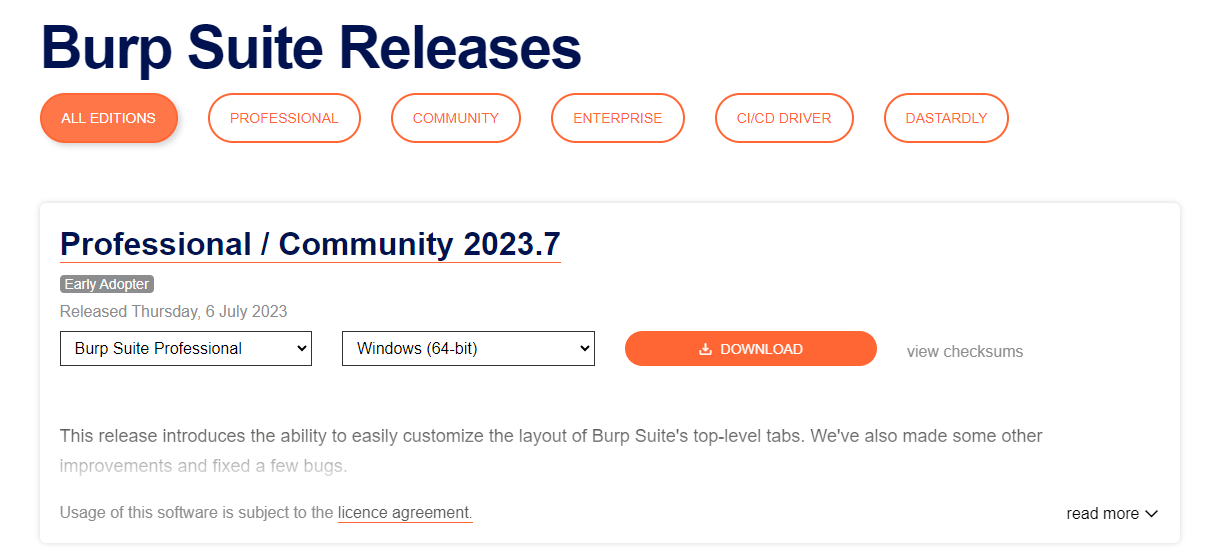
To download the latest version of Burp Suite for other systems, you may click this button to go to their download page.

  • Kali Linux: Burp Suite comes pre-installed with Kali Linux. In case it is missing on your Kali installation, you can easily install it from the Kali apt repositories.

  • Linux, macOS, and Windows: For other operating systems, PortSwigger provides dedicated installers for Burp Suite Community and Burp Suite Professional on the Burp Suite downloads page. Choose your operating system from the dropdown menu and select Burp Suite Community Edition. Then, click the Download button to initiate the download.

Installation page of Burp Suite

Installation

Install Burp Suite using the appropriate method for your operating system. On Windows, run the executable file, while on Linux, execute the script from the terminal (with or without sudo). If you choose not to use sudo during installation on Linux, Burp Suite will be installed in your home directory at ~/BurpSuiteCommunity/BurpSuiteCommunity and will not be added to your PATH.

The installation wizard provides clear instructions, and it is generally safe to accept the default settings. However, it is always recommended to review the installer carefully.

With Burp Suite successfully installed, you can now launch the application. In the next task, we will explore the initial setup and configuration.

Answer the questions below

Success

No answer needed

Task 5 - The Dashboard

You may use the pre-installed Burp Suite Community Edition in our AttackBox. To launch the AttackBox, click the Start AttackBox button at the top of this page.

Once you launch Burp Suite and accept the terms and conditions, you will be prompted to select a project type. In Burp Suite Community, the options are limited, and you can simply click Next to proceed.

The next window allows you to choose the configuration for Burp Suite. It is generally recommended to keep the default settings, which are suitable for most situations. Click Start Burp to open the main Burp Suite interface.

Upon opening Burp Suite for the first time, you might encounter a screen with training options. It is highly recommended to go through these training materials when you have the time.

If you don't see the training screen (or in subsequent sessions), you will be presented with the Burp Dashboard, which may seem overwhelming at first. However, it will soon become familiar.

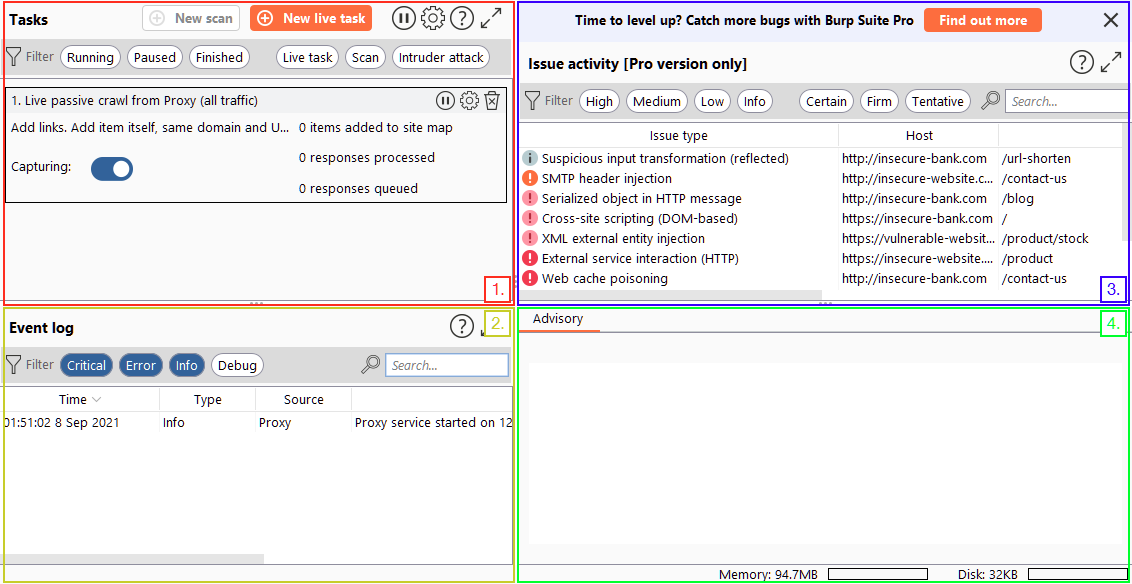
The Burp Dashboard is divided into four quadrants, as labelled in counter-clockwise order starting from the top left:

The four quadrants of Burp Community Dashboard

  1. Tasks: The Tasks menu allows you to define background tasks that Burp Suite will perform while you use the application. In Burp Suite Community, the default “Live Passive Crawl” task, which automatically logs the pages visited, is sufficient for our purposes in this module. Burp Suite Professional offers additional features like on-demand scans.

  2. Event log: The Event log provides information about the actions performed by Burp Suite, such as starting the proxy, as well as details about connections made through Burp.

  3. Issue Activity: This section is specific to Burp Suite Professional. It displays the vulnerabilities identified by the automated scanner, ranked by severity and filterable based on the certainty of the vulnerability.

  4. Advisory: The Advisory section provides more detailed information about the identified vulnerabilities, including references and suggested remediations. This information can be exported into a report. In Burp Suite Community, this section may not show any vulnerabilities.

Throughout the various tabs and windows of Burp Suite, you will notice question mark icons (question mark icon!).

Clicking on these icons opens a new window with helpful information specific to that section. These help icons are invaluable when you need assistance or clarification on a particular feature, so make sure to utilise them effectively.

Help menu when the question mark logo is clicked!

By exploring the different tabs and functionalities of Burp Suite, you will gradually become familiar with its capabilities.

nswer the questions below

  1. What menu provides information about the actions performed by Burp Suite, such as starting the proxy, and details about connections made through Burp?

Success

Event log

Task 6 - Navigation

In Burp Suite, the default navigation is primarily done through the top menu bars, which allow you to switch between modules and access various sub-tabs within each module. The sub-tabs appear in a second menu bar directly below the main menu bar.

Here's how the navigation works:

Module Selection: The top row of the menu bar displays the available modules in Burp Suite. You can click on each module to switch between them. For example, the Burp Proxy module is selected in the image below.

Sub-Tabs: If a selected module has multiple sub-tabs, they can be accessed through the second menu bar that appears directly below the main menu bar. These sub-tabs often contain module-specific settings and options. For example, in the image above, the Proxy Intercept sub-tab is selected within the Burp Proxy module.

Detaching Tabs: If you prefer to view multiple tabs separately, you can detach them into separate windows. To do this, go to the Window option in the application menu above the Module Selection bar. From there, choose the "Detach" option, and the selected tab will open in a separate window. The detached tabs can be reattached using the same method.

Burp Suite also provides keyboard shortcuts for quick navigation to key tabs. By default, the following shortcuts are available:

Shortcut Tab
Ctrl + Shift + D Dashboard
Ctrl + Shift + T Target tab
Ctrl + Shift + P Proxy tab
Ctrl + Shift + I Intruder tab
Ctrl + Shift + R Repeater tab

### Answer the questions below\

  1. Which tab Ctrl + Shift + P will switch us to?

Success

Proxy tab

Task 7 - Options

Before diving into the Burp Proxy, let's explore the available options for configuring Burp Suite. There are two types of settings: Global settings (also known as User settings) and Project settings.

  1. Global Settings: These settings affect the entire Burp Suite installation and are applied every time you start the application. They provide a baseline configuration for your Burp Suite environment.

  2. Project Settings: These settings are specific to the current project and apply only during the session. However, please note that Burp Suite Community Edition does not support saving projects, so any project-specific options will be lost when you close Burp.

To access the settings, click on the Settings button in the top navigation bar. This will open a separate settings window.

Settings button

Below is the image showing the separate settings window.

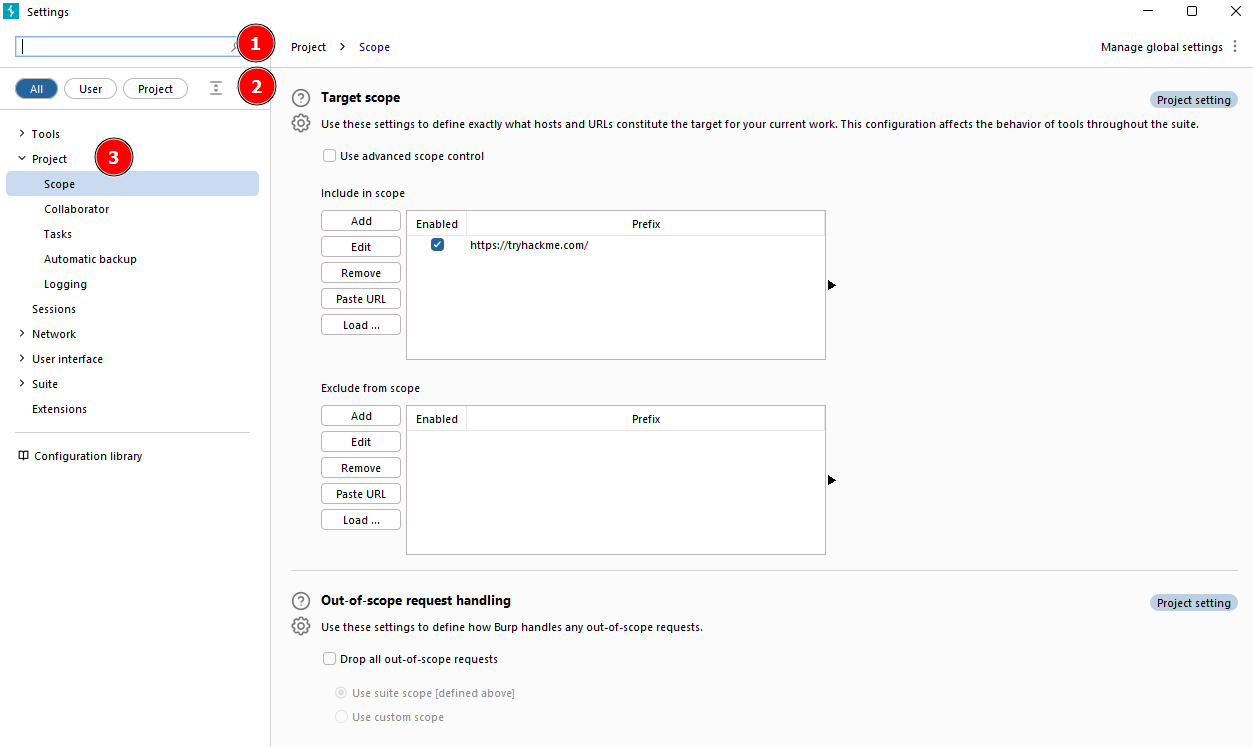
Separate settings window

In the Settings window, you will find a menu on the left-hand side. This menu allows you to switch between different types of settings, including:

  1. Search: Enables searching for specific settings using keywords.
  2. Type filter: Filters the settings for User and Project options.
    • User settings: Shows settings that affect the entire Burp Suite installation.
    • Project settings: Displays settings specific to the current project.
  3. Categories: Allows selecting settings by category. Project settings button

It's worth noting that many tools within Burp Suite provide shortcuts to specific categories of settings. For example, the Proxy module includes a Proxy settings button that opens the settings window directly to the relevant proxy section.

Proxy settings button that opens the settings window directly to the relevant proxy section

The search feature on the settings page is a valuable addition, allowing you to quickly search for settings using keywords.

Take some time to familiarise yourself with the range of configurable options in Burp Suite. Once you are comfortable, you can proceed with the exercises related to configuring Burp Suite settings.

Answer the questions below

  1. In which category can you find a reference to a "Cookie jar"?

Success

Sessions

  1. In which base category can you find the "Updates" sub-category, which controls the Burp Suite update behaviour?

Success

Suite

  1. What is the name of the sub-category which allows you to change the keybindings for shortcuts in Burp Suite?

Success

Hotkeys

  1. If we have uploaded Client-Side TLS certificates, can we override these on a per-project basis (yea/nay)?

Success

yea

Task 8 - Introduction to the Burp Proxy

The Burp Proxy is a fundamental and crucial tool within Burp Suite. It enables the capture of requests and responses between the user and the target web server. This intercepted traffic can be manipulated, sent to other tools for further processing, or explicitly allowed to continue to its destination.

Key points to understand about the Burp Proxy

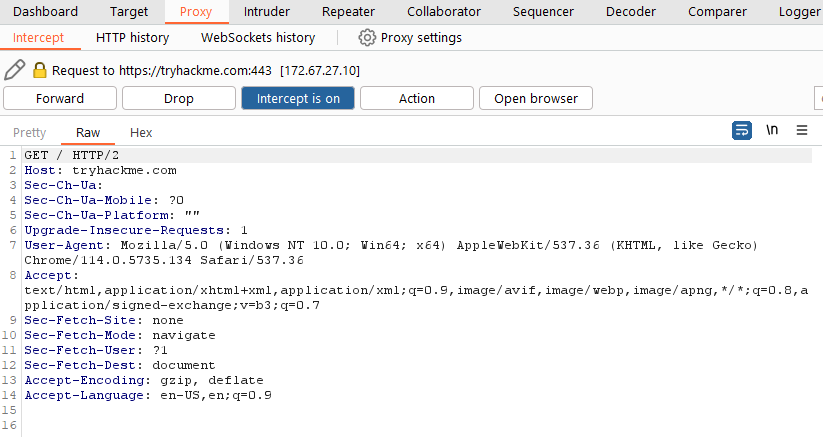
  • Intercepting Requests: When requests are made through the Burp Proxy, they are intercepted and held back from reaching the target server. The requests appear in the Proxy tab, allowing for further actions such as forwarding, dropping, editing, or sending them to other Burp modules. To disable the intercept and allow requests to pass through the proxy without interruption, click the Intercept is on button. Interception Requests
  • Taking Control: The ability to intercept requests empowers testers to gain complete control over web traffic, making it invaluable for testing web applications.
  • Capture and Logging: Burp Suite captures and logs requests made through the proxy by default, even when the interception is turned off. This logging functionality can be helpful for later analysis and review of prior requests.
  • WebSocket Support: Burp Suite also captures and logs WebSocket communication, providing additional assistance when analysing web applications.
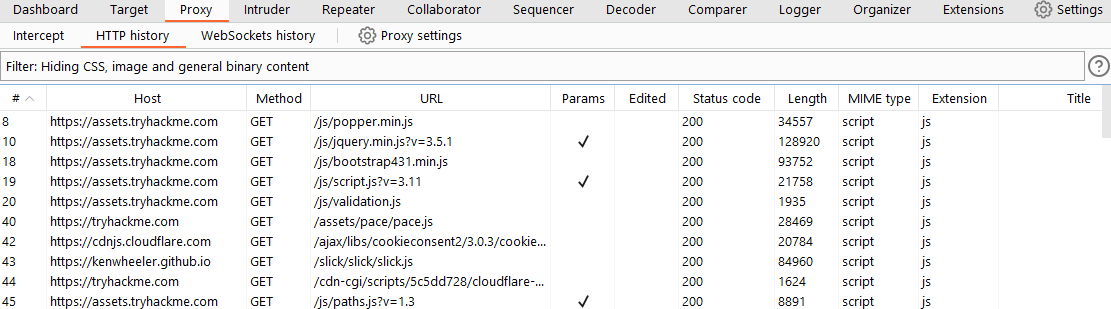
  • Logs and History: The captured requests can be viewed in the HTTP history and WebSockets history sub-tabs, allowing for retrospective analysis and sending the requests to other Burp modules as needed.

    Burp Modules history Proxy-specific options can be accessed by clicking the Proxy settings button. These options provide extensive control over the Proxy’s behaviour and functionality. Familiarise yourself with these options to optimize your Burp Proxy usage.
Some notable features in the Proxy settings

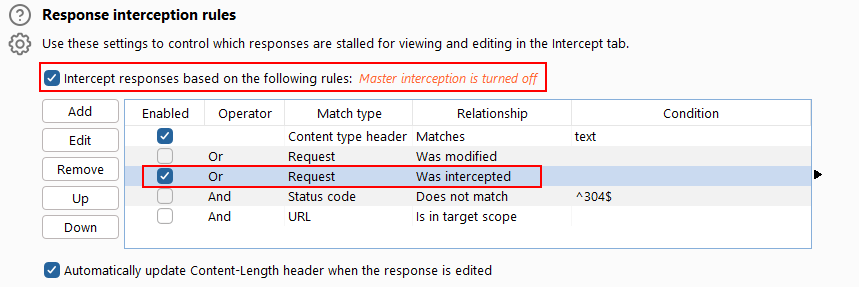
  • Response Interception: By default, the proxy does not intercept server responses unless explicitly requested on a per-request basis. The "Intercept responses based on the following rules" checkbox, along with the defined rules, allows for a more flexible response interception.

    Response interception rules

  • Match and Replace: The "Match and Replace" section in the Proxy settings enables the use of regular expressions (regex) to modify incoming and outgoing requests. This feature allows for dynamic changes, such as modifying the user agent or manipulating cookies.

Take the time to explore and experiment with the Proxy options, as this will enhance your understanding and proficiency with the tool.

NO ANSWER NEEDED

Ba da bing, ba da move along.

Task 9 - Connecting through the Proxy (FoxyProxy)

Start the machine by clicking the Start Machine button at the upper right corner of this task.

To use the Burp Suite Proxy, we need to configure our local web browser to redirect traffic through Burp Suite. In this task, we will focus on configuring the proxy using the FoxyProxy extension in Firefox.

Note

Please note that the instructions provided are specific to Firefox. If you are using a different browser, you may need to find alternative methods or use the TryHackMe AttackBox.

Here are the steps to configure the Burp Suite Proxy with FoxyProxy:

  1. Install FoxyProxy: Download and install the FoxyProxy Basic extension https://addons.mozilla.org/en-US/firefox/addon/foxyproxy-basic/.

Note

FoxyProxy is already installed on the AttackBox.

  1. Access FoxyProxy Options: Once installed, a button will appear at the top right of the Firefox browser. Click on the FoxyProxy button to access the FoxyProxy options pop-up.

  2. Create Burp Proxy Configuration: In the FoxyProxy options pop-up, click the Options button. This will open a new browser tab with the FoxyProxy configurations. Click the Add button to create a new proxy configuration.

  3. Add Proxy Details: On the “Add Proxy” page, fill in the following values:

Title: Burp (or any preferred name)
Proxy IP: 127.0.0.1
Port: 8080
  1. Save Configuration: Click Save to save the Burp Proxy configuration.

6 Activate Proxy Configuration: Click on the FoxyProxy icon at the top-right of the Firefox browser and select the Burp configuration. This will redirect your browser traffic through 127.0.0.1:8080. Note that Burp Suite must be running for your browser to make requests when this configuration is activated.

  1. Enable Proxy Intercept in Burp Suite: Switch to Burp Suite and ensure that Intercept is turned on in the Proxy tab.

  2. Test the Proxy: Open Firefox and try accessing a website, such as the homepage for http://MACHINE_IP/. Your browser will hang, and the proxy will populate with the HTTP request. Congratulations, you have successfully intercepted your first request!

Remember the following:

When the proxy configuration is active, and the intercept is switched on in Burp Suite, your browser will hang whenever you make a request. Be cautious not to leave the intercept switched on unintentionally, as it can prevent your browser from making any requests. Right-clicking on a request in Burp Suite allows you to perform various actions, such as forwarding, dropping, sending to other tools, or selecting options from the right-click menu. Take note of these details as you begin using the Burp Suite Proxy.

Note

Consider closing the other tabs in the AttackBox browser before enabling interception, as you will receive some WebSocket requests instead of request from the target VM.

Answer the questions below

No Answer Needed

Task 10 - Site Map and Issue Definitions

The Target tab in Burp Suite provides more than just control over the scope of our testing. It consists of three sub-tabs:

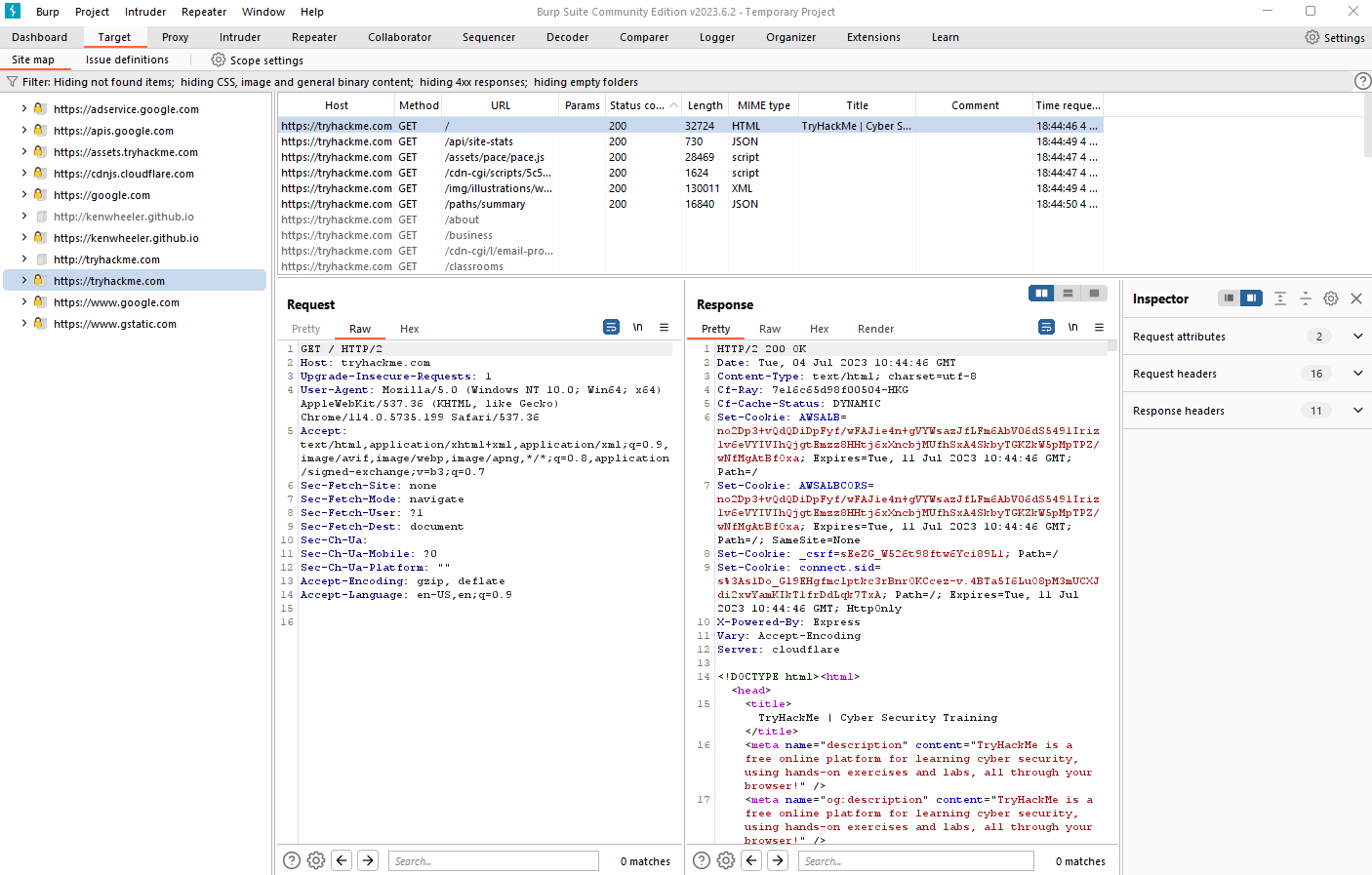
  1. Site map: This sub-tab allows us to map out the web applications we are targeting in a tree structure. Every page that we visit while the proxy is active will be displayed on the site map. This feature enables us to automatically generate a site map by simply browsing the web application. In Burp Suite Professional, we can also use the site map to perform automated crawling of the target, exploring links between pages and mapping out as much of the site as possible. Even with Burp Suite Community, we can still utilize the site map to accumulate data during our initial enumeration steps. It is particularly useful for mapping out APIs, as any API endpoints accessed by the web application will be captured in the site map.
  2. Issue definitions: Although Burp Community does not include the full vulnerability scanning functionality available in Burp Suite Professional, we still have access to a list of all the vulnerabilities that the scanner looks for. The Issue definitions section provides an extensive list of web vulnerabilities, complete with descriptions and references. This resource can be valuable for referencing vulnerabilities in reports or assisting in describing a particular vulnerability that may have been identified during manual testing.
  3. Scope settings: This setting allows us to control the target scope in Burp Suite. It enables us to include or exclude specific domains/IPs to define the scope of our testing. By managing the scope, we can focus on the web applications we are specifically targeting and avoid capturing unnecessary traffic.

Overall, the Target tab offers features beyond scoping, allowing us to map out web applications, fine-tune our target scope, and access a comprehensive list of web vulnerabilities for reference purposes.

Challenge Take a look around the site on http://MACHINE_IP/ — we will be using this a lot throughout the module.

Visit every other page that is linked on the homepage, then check your sitemap — one endpoint should stand out as being very unusual!

Visit this in your browser (or use the “Response” section of the site map entry for that endpoint)

Answer the questions below

  1. What is the flag you receive after visiting the unusual endpoint?(Question Hint You are looking for a suspicious page with a name made up of a series of random letters and numbers).

Success

THM{NmNlZTliNGE1MWU1ZTQzMzgzNmFiNWWk}

Task 11 - The Burp Suite Browser

If the previous tasks seemed overly complex, rest assured, this topic will be a lot simpler.

In addition to modifying our regular web browser to work with the proxy, Burp Suite also includes a built-in Chromium browser that is pre-configured to use the proxy without any of the modifications we just had to do.

To start the Burp Browser, click the Open Browser button in the proxy tab. A Chromium window will pop up, and any requests made in this browser will go through the proxy.

Note: There are many settings related to the Burp Browser in the project options and user options settings. Make sure to explore and customise them as needed.

However, if you are running Burp Suite on Linux as the root user (as is the case with the AttackBox), you may encounter an error preventing the Burp Browser from starting due to the inability to create a sandbox environment.

There are two simple solutions to this:

  1. Smart option: Create a new user and run Burp Suite under a low-privilege account to allow the Burp Browser to run without issues.
  2. Easy option: Go to Settings -> Tools -> Burp's browser and check the Allow Burp's browser to run without a sandbox option. Enabling this option will allow the browser to start without a sandbox. However, please be aware that this option is disabled by default for security reasons. If you choose to enable it, exercise caution, as compromising the browser could grant an attacker access to your entire machine. In the training environment of the AttackBox, this is unlikely to be a significant issue, but use it responsibly.

No answer needed

Task 12 - Scoping and Targeting

Finally, we come to one of the most important aspects of using the Burp Proxy: Scoping.

Capturing and logging all of the traffic can quickly become overwhelming and inconvenient, especially when we only want to focus on specific web applications. This is where scoping comes in.

By setting a scope for the project, we can define what gets proxied and logged in Burp Suite. We can restrict Burp Suite to target only the specific web application(s) we want to test. The easiest way to do this is by switching to the Target tab, right-clicking on our target from the list on the left, and selecting Add To Scope. Burp will then prompt us to choose whether we want to stop logging anything that is not in scope, and in most cases, we want to select yes.

setting scope of project

To check our scope, we can switch to the Scope settings sub-tab within the Target tab.

The Scope settings window allows us to control our target scope by including or excluding domains/IPs. This section is powerful and worth spending time getting familiar with.

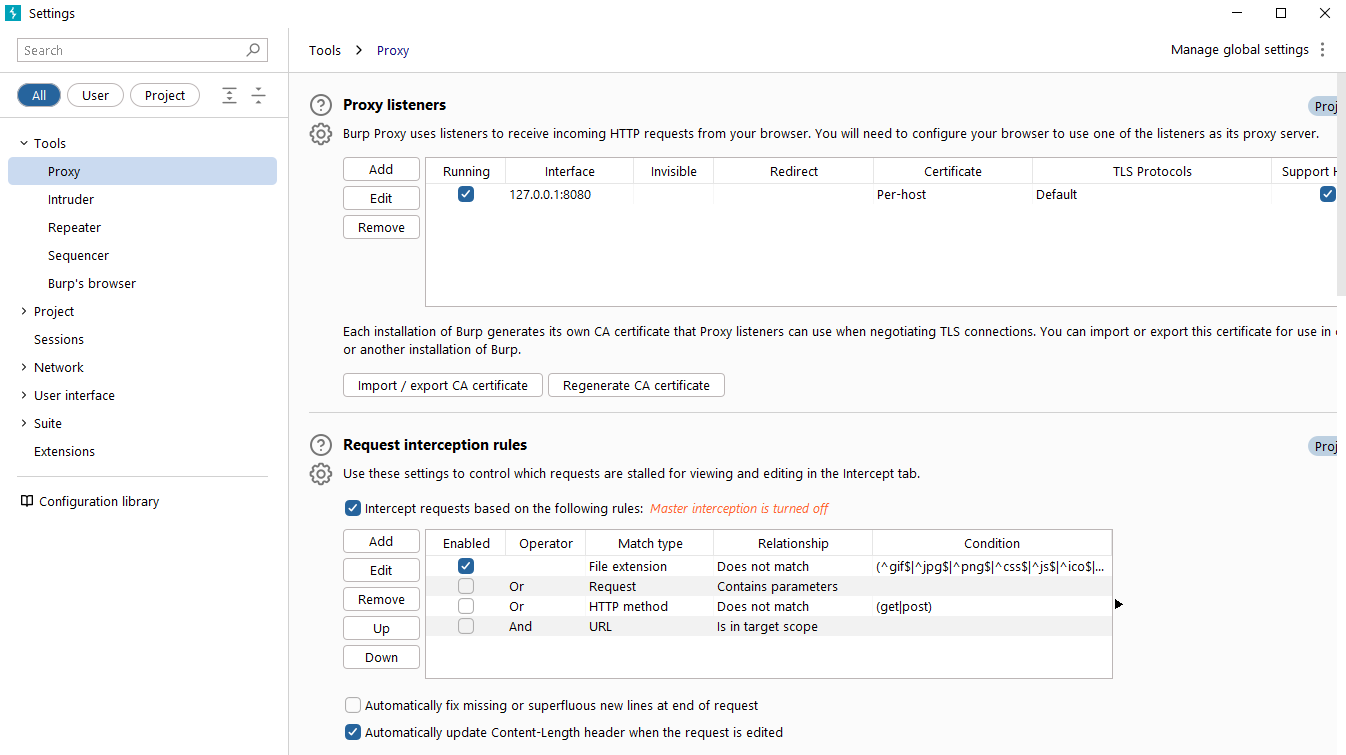
However, even if we disabled logging for out-of-scope traffic, the proxy will still intercept everything. To prevent this, we need to go to the Proxy settings sub-tab and select And URL Is in target scope from the "Intercept Client Requests" section.

Enabling this option ensures that the proxy completely ignores any traffic that is not within the defined scope, resulting in a cleaner traffic view in Burp Suite.

No answer needed

Task 13 - Proxying HTTPS

Note: The AttackBox is already configured to solve the problem posed in this task. If you use the AttackBox and don’t wish to read through the information here, you can skip to the next task.

When intercepting HTTP traffic, we may encounter an issue when navigating to sites with TLS enabled. For example, when accessing a site like https://google.com/, we may receive an error indicating that the PortSwigger Certificate Authority (CA) is not authorised to secure the connection. This happens because the browser does not trust the certificate presented by Burp Suite.

To overcome this issue, we can manually add the PortSwigger CA certificate to our browser’s list of trusted certificate authorities. Here’s how to do it:

Download the CA Certificate: With the Burp Proxy activated, navigate to http://burp/cert. This will download a file called cacert.der. Save this file somewhere on your machine. Access Firefox Certificate Settings: Type about:preferences into your Firefox URL bar and press Enter. This will take you to the Firefox settings page. Search the page for "certificates" and click on the View Certificates button.

Import the CA Certificate: In the Certificate Manager window, click on the Import button. Select the cacert.der file that you downloaded in the previous step. Set Trust for the CA Certificate: In the subsequent window that appears, check the box that says “Trust this CA to identify websites” and click OK.

By completing these steps, we have added the PortSwigger CA certificate to our list of trusted certificate authorities. Now, we should be able to visit any TLS-enabled site without encountering the certificate error.

By following these instructions, you can ensure that your browser trusts the PortSwigger CA certificate and securely communicates with TLS-enabled websites through the Burp Suite Proxy.

No Answer Needed

If you are not using the AttackBox, configure Firefox (or your browser of choice) to accept the PortSwigger CA certificate for TLS communication through the Burp Proxy.

Task 14 - Example Attack

Having looked at how to set up and configure our proxy, let’s go through a simplified real-world example.

We will start by taking a look at the support form at http://MACHINE_IP/ticket/:

In a real-world web app pentest, we would test this for a variety of things, one of which would be Cross-Site Scripting (or XSS). If you have not yet encountered XSS, it can be thought of as injecting a client-side script (usually in Javascript) into a webpage in such a way that it executes. There are various kinds of XSS — the type that we are using here is referred to as “Reflected” XSS, as it only affects the person making the web request.

Walkthrough

Try typing: <script>alert("Succ3ssful XSS")</script>, into the "Contact Email" field. You should find that there is a client-side filter in place which prevents you from adding any special characters that aren't allowed in email addresses:

Fortunately for us, client-side filters are absurdly easy to bypass. There are a variety of ways we could disable the script or just prevent it from loading in the first place.

Let’s focus on simply bypassing the filter for now.

First, make sure that your Burp Proxy is active and that intercept is on.

Now, enter some legitimate data into the support form. For example: “pentester@example.thm” as an email address, and “Test Attack” as a query.

Submit the form — the request should be intercepted by the proxy.

With the request captured in the proxy, we can now change the email field to be our very simple payload from above: <script>alert("Succ3ssful XSS")</script>. After pasting in the payload, we need to select it, then URL encode it with the Ctrl + U shortcut to make it safe to send. This process is shown in the GIF below:

Finally, press the “Forward” button to send the request.

You should find an alert box from the site indicating a successful XSS attack!

Task 15 - Conclusion

Congratulations on completing the Burp Basics room! You now have a solid understanding of the Burp Suite interface, configuration options, and the Burp Proxy. These skills will be essential as you continue your journey in web and mobile application penetration testing.

To further enhance your skills, I encourage you to practice and experiment with Burp Suite. Explore its features, try different configurations, and familiarise yourself with its various tools. The more you use Burp Suite, the more proficient you will become in identifying and exploiting vulnerabilities in web applications.

In the next room of the module, we will dive deeper into Burp Suite Repeater, another powerful tool for manual testing and manipulation of web application requests. Stay curious and keep learning!

Stay curious and keep learning!

My Thoughts

Overall a comprehensive introduction to a powerful web application tool.

My Rating

7/10

Ableton is great, Lets make some fun music with it.

I remember the time when I was a teenage boy back in Lahore, sitting in a living room behind a Pentium laptop browsing music forums to find cool electronic dance music. I would spend hours after school on Living Electro, often times exploring branches from there. It was node based exploration and despite the inefficiency of my methods, I was hooked. I loved how a community of musicians exists who use expert knowledge of computers to provide "patched" software of really expensive studio software and then the same community also makes great music and art and shares it with the world.

Keep it legal, girlie.

It is essential to keep in mind that any patched software you obtain could potentially be devastating to your machine and network. Please do your own research and understand the risks of your actions. As a teen still living in Pakistan, such concerns never came to mind but I would not be repeating those actions in the future.

I got my hands on some patched FL studio instances and later, Ableton Live 11. Ableton is definitely my software of choice. It integrates wonderfully with MIDI controllers, analog gear and everything in between. Also, having the ability to navigate from Session to Arrangement view really opens up room for truly dynamic workflows.

What the heck are you talking about?

Ableton Live is a digital audio workstation for macOS and Windows developed by the German company Ableton. In contrast to many other software sequencers, Live is designed to be an instrument for live performances as well as a tool for composing, recording, arranging, mixing, and mastering audio. It is also used by DJs, as it offers a suite of controls for beatmatching, crossfading, and other different effects used by turntablists, and was one of the first music applications to automatically beatmatch songs Continued in Wikipedia

  • developer(s): Ableton
  • initial release: October 30, 2001
  • written in: C++

What does it look like?

Ableton UI /// Ableton on startup ///

My Approach to a new set

Back in the day I used to try all kinds of nutty techniques to get inspiration to start a project on Ableton. It can be daunting, yes. You are about to create sound which would then inspire you to make more sounds? Sounds like wizardry. I like it.

Now I try to keep it simple.

1) Drum loop 2) Pad or something ambient 3) catchy melody or bassline to maintain groove

Keep those three playing before you introduce the rest of the elements.

DRUMS

I went with Ableton stock "Beard Kit" to get the pattern going. That sounded nice to me.

pattern

Drum Pattern /// Here is the pattern I came up with. The drums have a nice jungle vibe to them with a nice 4 on the floor pattern. ///

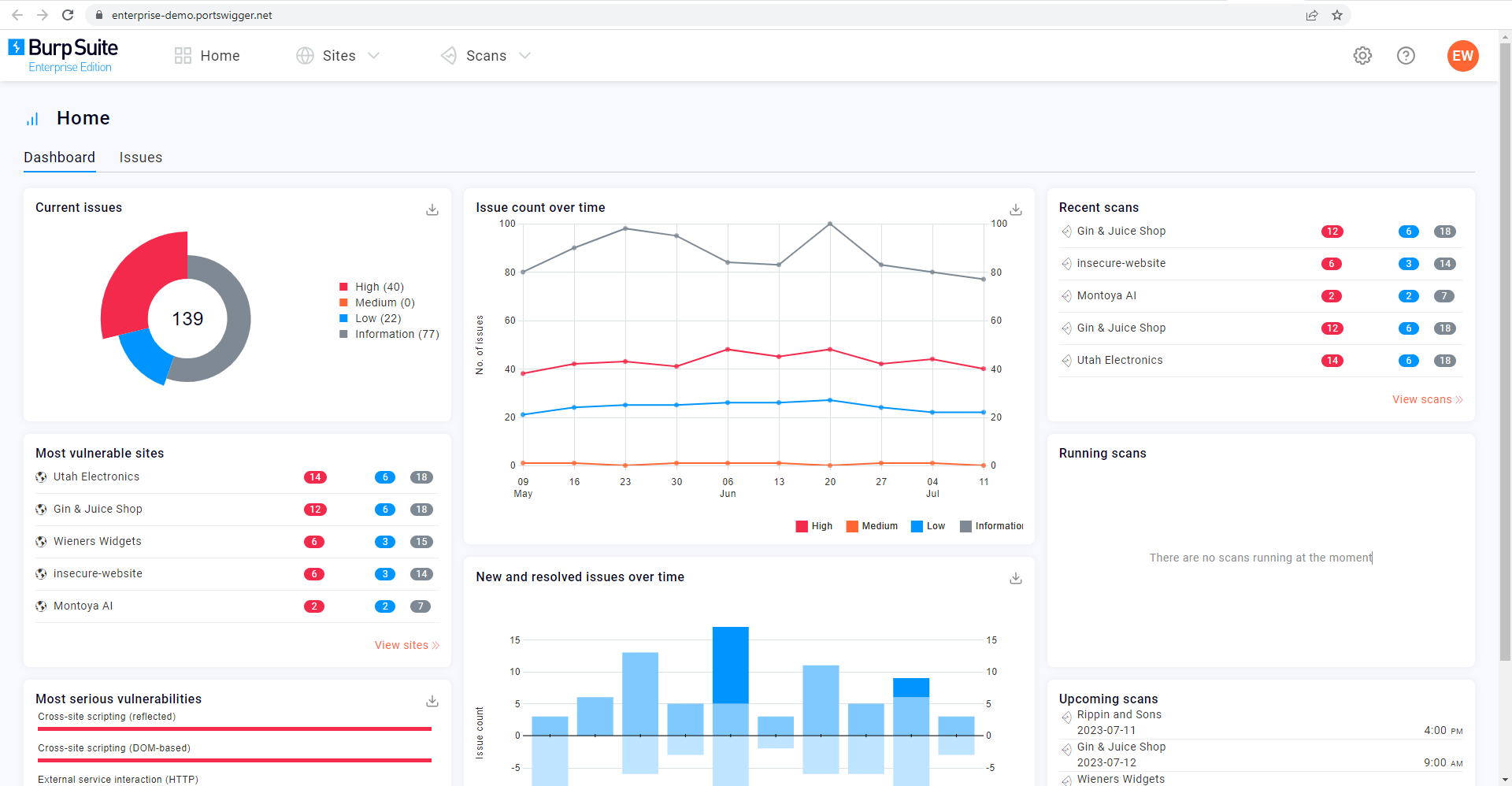
PAD

I used Xfer Serum but you may use whichever VST you like, even the stock ableton plugins kick ass!

Pattern

Serum Pattern

Values

Serum Values

In this case I am using 3 sine oscillators with a high pass filter and modulation.

Advanced Network Pivoting and Lateral Movement Analysis

Methodology for Authorized Penetration Testing

Modern internal environments are increasingly segmented. A professional penetration tester must understand how to navigate these segments once initial access is gained (assuming authorization). This article focuses on the "Pivoting" stage of a pentest, using legitimate tools to demonstrate network reachability.

Real-World Scenario

A consultant has gained access to a development workstation in the 10.10.10.0/24 subnet. The goal is to verify if the production database in 10.10.20.0/24 is reachable, which would indicate a violation of the NIST SP 800-125B virtualization security guidelines.

Implementation: Python-Based Port Scanner for Lateral Discovery

Instead of using noisy scanners that might be flagged, a customized Python script can perform targeted discovery.

import socket
import threading
from queue import Queue

# Prerequisites: Python 3.x, Target subnet authorization
target_subnet = "10.10.20."
port_list = [80, 443, 445, 3306, 3389]
print_lock = threading.Lock()

def scan_port(ip, port):
    try:
        sock = socket.socket(socket.AF_INET, socket.SOCK_STREAM)
        sock.settimeout(0.5)
        result = sock.connect_ex((ip, port))
        if result == 0:
            with print_lock:
                print(f"[+] Found Open Port: {ip}:{port}")
        sock.close()
    except Exception:
        pass

def threader():
    while True:
        ip, port = q.get()
        scan_port(ip, port)
        q.task_done()

q = Queue()
for _ in range(20): # Thread count
    t = threading.Thread(target=threader)
    t.daemon = True
    t.start()

# Scanning specific range in authorized subnet
for host in range(1, 255):
    for port in port_list:
        q.put((f"{target_subnet}{host}", port))

q.join()

Step-by-Step Execution

  1. Verify Scope: Ensure the 10.10.20.0/24 range is explicitly listed in the Rules of Engagement (RoE).

  2. Establish Pivot: Use an SSH tunnel or a SOCKS proxy (e.g., ssh -D 1080 user@pivot-host).

  3. Execute Discovery: Run the Python script to identify misconfigured access control lists (ACLs).

Warning

Tools that automate exploitation or lateral movement can cause system instability. Never run scanning scripts in production environments without a confirmed backup and emergency contact. Limit thread counts to avoid DoS-like conditions on legacy networking gear.

The Ultimate Guide to Job Search Networking on LinkedIn

Networking can be intimidating, but it doesn’t have to be. LinkedIn is your chance to turn a cold introduction into a warm connection. Think of it as walking into a room full of industry leaders and potential collaborators—but instead of small talk, you have the perfect opening line ready to go. The trick? Make it personal, specific, and genuine. A well-crafted connection request can spark conversations that could change your career.

Building meaningful relationships takes time and effort, but it’s worth it. When you approach networking with curiosity and a willingness to engage, you’re not just making connections for today—you’re investing in relationships that could open doors down the road. Real connections are built on trust, shared interests, and mutual value.

Why does it matter?

  1. Access to hidden job opportunities
    • Let's be real, not all great opportunities are posted online. Many are internal and you might miss out on them if not for your network.
  2. Enhance visibility to recruiters
  3. Building a strong personal brand
    • Be known as THAT GUY/GAL/PERSON/THING of your own personal brand. Your LinkedIn profile serves as your digital identity, showcasing your experience, skills, and achievements. A well-crafted profile helps build credibility and authority in your industry.

Crafting Your Connection Request

Here’s how to create requests that feel personal and engaging:

  1. Start with a Personal Greeting

    • Use their name to make the message feel tailored and thoughtful.
  2. Reference Something Specific

    • Mention a mutual connection, their recent post, or something from their profile that caught your attention.
  3. Show Your Intentions Thoughtfully

    • Focus on learning, exchanging ideas, or building a professional relationship. Show genuine curiosity about their work and highlight how connecting could benefit both of you.
  4. Close with an Invitation

    • Politely invite them to connect and keep the door open for future conversations.

Job Search Connection Templates

If you’re actively seeking new opportunities, LinkedIn can be an invaluable tool for making meaningful connections that could lead to your next role. Here are some tailored templates to help you approach networking with clarity and professionalism (go ahead and try these with me):

Template 1: Common Industry or Interest

Hi [Name],

I noticed that we both share a passion for [industry/interest]. I’m currently exploring new opportunities in [specific field or role] and would love to connect with you to learn more about your experience at [Company Name]. Looking forward to connecting!

Best regards, [Your Name]

Template 2: Shared Background

Hi [Name],

I noticed that we both share a connection through [Your University/Google Career Certificate Program/industry association]. I’m currently seeking new opportunities in [specific field or role] and would love to learn more about your experience at [Company Name]. If you have any insights or advice to share, I’d greatly appreciate it.

Thank you, [Your Name]

Template 3: Mutual Connection

Hi [Name],

I came across your profile through our mutual connection, [Mutual Connection’s Name]. I’m currently looking for opportunities in [specific field or role] and would love to connect with you to learn more about your work at [Company Name].

Best, [Your Name]

!!! Note Template 4: Direct Approach for Job Inquiry Hi [Name],

I hope this message finds you well. I’m reaching out because I’m very interested in [specific role] at [Company Name]. With my background in [briefly mention your experience or skills], I believe I could be a great fit for your team. I would love to connect and discuss any potential opportunities.

Thank you,
[Your Name]

!!! Note Template 5: Request for Informational Interview Hi [Name],

I’m currently exploring opportunities in [specific field or role] and came across your impressive profile. I would love to connect and possibly schedule a brief informational interview to learn more about your career path and experiences at [Company Name].

Thank you for considering my request!

Best regards,
[Your Name]

Scripts with Specific Examples For General Connection

  1. Project Management

Note

Hi [Name],

I saw your post about [specific project or technique], and it really resonated with me. I’m currently working on improving [specific aspect like stakeholder communication or team workflows] and thought it might be helpful to exchange ideas. Let’s connect—I’d love to hear how you approach [specific challenge], and I’m happy to share what’s worked for me too!

  1. Cybersecurity

Note

*Hi [Name],

Your recent insights on [specific cybersecurity challenge, e.g., phishing prevention or cloud security] really made me think. I’m tackling similar issues and would love to learn how you’ve approached [specific issue]. Let’s connect and swap strategies—it’s always great to hear different perspectives!*

  1. Data Analytics

Note

*Hi [Name],

I came across your work on [specific data-related project, e.g., predictive modeling or visualization techniques], and I found it inspiring. I’m exploring similar challenges and thought it’d be great to connect and share approaches. If you’re open to it, I’d love to hear what’s worked for you and share my own experiences too!*

  1. Digital Marketing

Note

*Hi [Name],

I’ve been following your campaigns for [specific project or brand], and your approach to [specific tactic like storytelling or SEO optimization] is impressive. I’d love to connect and hear more about your process. Let me know if there’s anything I can share from my own experiences that might be helpful!*

  1. UI/UX Design

Note

*Hi [Name],

Your work on [specific project or design element] really stood out to me. I’m working on improving [specific aspect like accessibility or user flow] and thought it might be helpful to connect. I’d love to hear about your process and share what’s been working for me too—it’s always great to learn from each other!*

  1. Customer Success

Note

*Hi [Name],

I saw your recent update about [specific initiative like improving onboarding or enhancing customer engagement], and it gave me some great ideas. I’d love to connect and exchange thoughts on what’s been working in customer success. Let me know if there’s anything I can do to support your work too!*

  1. IT Support

Note

*Hi [Name],

I noticed your experience with [specific tool or process], and it caught my attention because I’m currently navigating similar challenges. Let’s connect—I’d love to hear how you’ve handled [specific issue], and I’d be happy to share my approach as well!*

Tips for Writing Effective Requests

  1. Be Relationship-Focused: Treat networking as a chance to build long-term connections, not a quick favor.

  2. Be Genuine: Personalize your message to show you’ve taken the time to learn about them.

  3. Provide Value: Share insights, engage with their content, or offer resources that could benefit them.

  4. Stay Engaged: Keep the relationship alive by interacting with their posts and sharing thoughtful comments.

Why Follow-Ups Matter

After the initial request, meaningful follow-ups are where the connection truly deepens. They show you’re genuinely interested in the relationship, not just the act of connecting. Follow-ups are an opportunity to continue the conversation, share relevant insights, and demonstrate your commitment to mutual growth. This step can transform a simple LinkedIn connection into a lasting professional relationship.

Examples of Meaningful Follow-Ups

Example

“Thanks for connecting! I appreciated your take on [specific challenge]. Have you tried [specific tool or method]? I’d love to hear your thoughts and share what’s worked for me.”

Example

“Thank you for connecting! Your perspective on [specific campaign] was really thought-provoking. How do you approach measuring success for projects like that? Happy to share my insights too!”

Bringing It All Together

Follow-ups are where relationships truly begin to grow. They show you’re invested in the connection and open to collaboration. Take the opportunity to engage authentically, offer value, and stay curious. By building on your initial outreach with meaningful dialogue, you set the foundation for a network that feels personal, supportive, and reciprocal.

Pro Tip

Before reaching out, make sure your profile tells your story. A professional photo, clear headline, and updated accomplishments help show potential connections who you are and why they’d want to connect with you.

Start Building Relationships That Matter

Networking on LinkedIn is more than exchanging messages or growing a list of contacts. You need to create meaningful relationships that leave a lasting impact. Every thoughtful connection request, engaging follow-up, and genuine interaction is a building block for trust and collaboration.

These relationships are opportunities to learn, grow, and support one another over time. When you invest in relationships with authenticity and purpose, you’re creating a community that helps you thrive professionally and personally. Take that first step and build the kind of relationships that turn simple connections into lifelong allies, mentors, and collaborators.

Come Kingdom, Come

This website has gone through many different iterations. It came from a need to gain credibility within an industry I so love and appreciate. It also came for an inherent need to create. Yes, I can practice leetcode and memorize the difference between a list and a tuple for that job interview but that really doesn't give me joy. I get joy from creating, and seeing my creations provide utility to humans.

First Post, Who this?

The first couple of versions I made of this portfolio website existed on a heavy React stack. React and Material UI were words planted firmly within my core functional existence. I went ballistic trying to make the perfect responsive website using thousands of YouTube tutorials

Escape the tutorial hell!!

If by some chance you aren't someone trying to see if I am a good fit for your team, and are still a student. Please escape the YouTube tutorial hell. If you need to watch 3 different React tutorials, maybe try reading documentation more often.

Doing > Watching

Every couple of months I would have to redo the website because of the aforementioned tutorial hell and I kept making great glorified hero sections.

Do you AI?!

With GenAI, I could make a new website every week. But where's the love? What of the hugs, the friends and the people we love?

So that wasn't going to cut it. enter MKDocs

MKDocs FTW!

Now I have a perfectly light website that integrates perfectly with my CI/CD pipeline. The future is now. I am excited to share guides and my thoughts.

Happy you're here.

x Salman.